Increment or decrement data point property
The action Increment or decrement data point property allows you to increment or decrement an arbitrary property of the data point assigned to the behavior.
This action is only available for the trigger “On click” and can be used to implement simple buttons that increase or decrease a value on the assigned data point when clicked by the user.
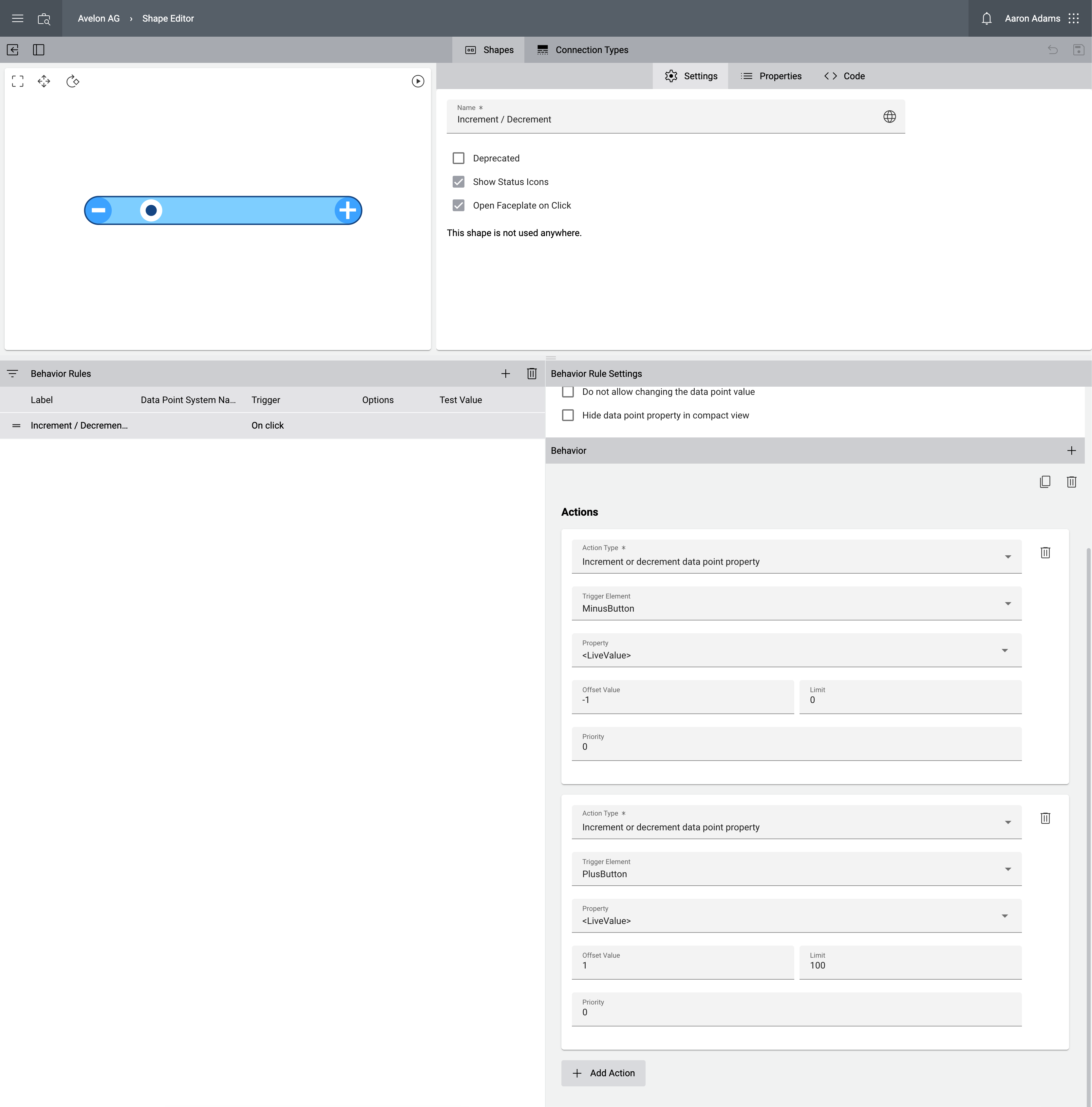
First, select the trigger On click in the Trigger dropdown. Next, select the element that should listen to the click event in the Trigger Element dropdown. Then select the property that should be incremented or decremented on the data point in the Property dropdown (for example <LiveValue>, which is an alias for Present_Value of BACnet data points).
In the field Offset Value, enter the value by which the current value of the property should be increased or decreased when the element is clicked. Use positive values to increment the property and negative values to decrement it. If you want to limit the value, you can enter the upper or lower bound in the Limit field. Note that the increment or decrement will only be applied if the resulting value is within the specified limits. Otherwise, an error will be displayed to the user. You can prevent this by hiding the trigger element when the value is outside the limits using the Show object conditionally action.
To create a separate action for incrementing and decrementing the value of the same data point in the same shape, just create two actions in the same behavior rule as shown in the following example.
Example
Increment button
Action |
|
|---|---|
Action Type |
Increment or decrement data point property |
Element |
Any element, preferably |
Property |
<LiveValue> |
Offset Value |
1 (to increment by one) |
Limit |
100 (to prevent incrementing value above 100) |
Limits and live value profiles
If you assign a data point to this behavior on the schematic that has a live value profile assigned, some special rules apply:
The increment or decrement will only be applied if the resulting value is within the following limits:
For a decrement action (i.e. if Offset Value is smaller than 0), the lower limit is calculated as the larger value of Limit from the shape configuration and Minimum Value from the live value profile (if set).
For an increment action (i.e. if Offset Value is greater than 0), the upper limit is calculated as the smaller value of Limit from the shape configuration and Maximum Value from the live value profile (if set).
If the resulting range is invalid (e.g. the minimum is larger than the maximum), or the incremented or decremented value is outside of the valid range, the increment or decrement will fail, and an error will be displayed to the user. In this case, try to fix the configuration to ensure that the Limit from the shape configuration is consistent with the limits defined in the live value profile of the data point. We recommend creating a separate shape for each used live value profile to avoid such issues.
The Step Increment value from the live value profile is not taken into account when using this action. Instead, the Offset Value defined above is used to determine the resulting value.