Subscriber
Subscribers let you subscribe to a data source to receive data point values as soon as they are emitted by that source.
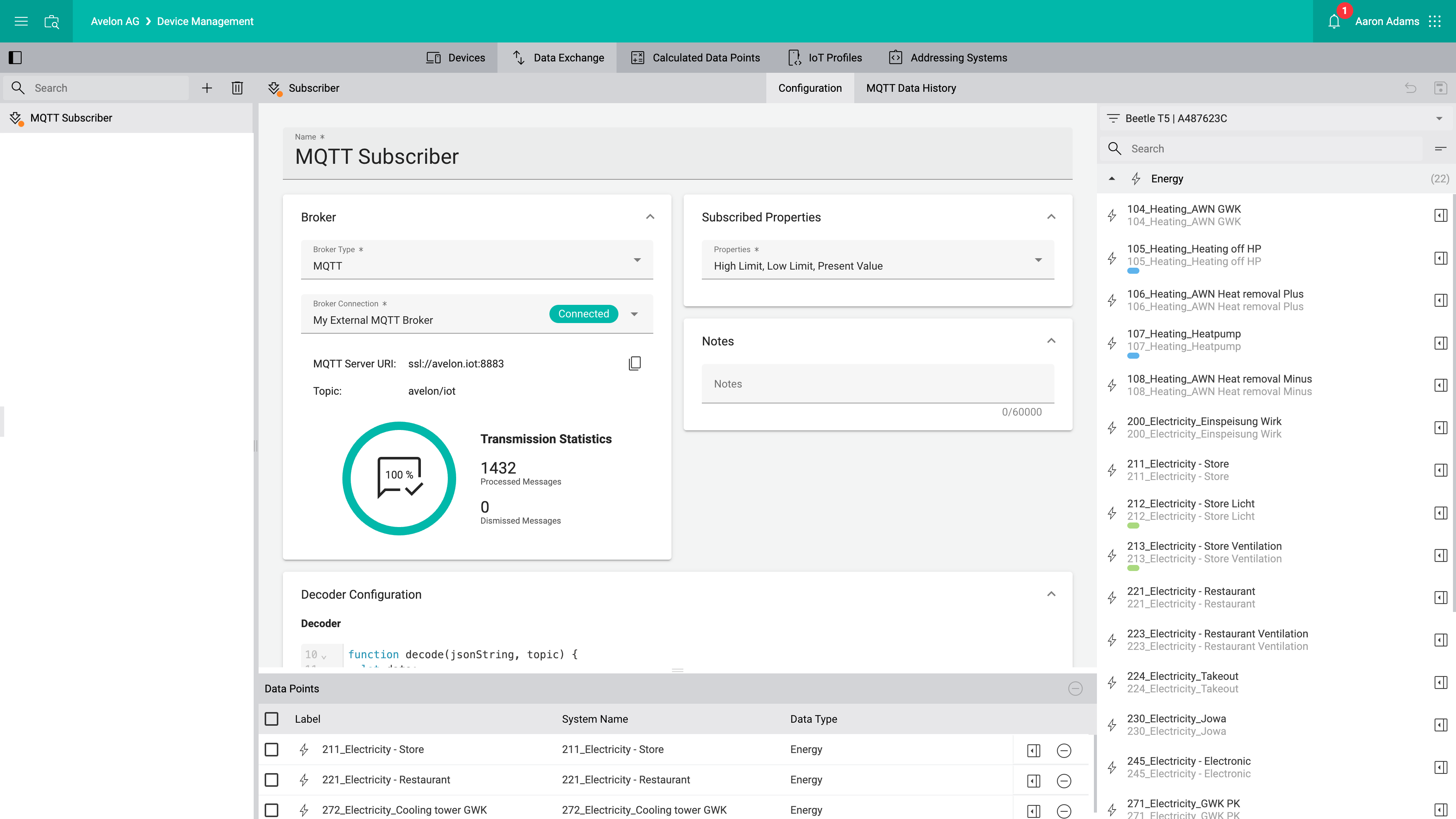
Broker
- Broker Type
Select the type of the data source.
Currently, only MQTT brokers are supported as data sources.
- Broker Connection
Select the desired broker connection from the list. If you want to add a new broker connection or edit an existing one, click on the Manage Broker Connections icon next to it.
See Manage external MQTT broker connections for more details about managing broker connections.
- Transmission Statistics
This section displays the transmission statistics for the received MQTT messages. On the right, you can see the number of messages that have been successfully processed, as well as the number of messages that have been dropped due to the violation of our MQTT restrictions. The number inside the circle shows the fraction of successfully processed messages in relation to the total number of received messages.
Subscribed Properties
In this list, you can select all the data point properties to which you want to subscribe.
Notes
Provide additional information about the purpose of this subscriber if necessary.
Decoder Configuration
In the Decoder field, define the decoding function.
The JavaScript function takes a string with the serialized JSON message from the MQTT broker and a string containing the topic and needs to return an array of objects with the fields systemName and value.
// Example payload:
// {
//   "type": "temperature",
//   "opc": 192,
//   "payload": {
//     "temperature": 23
//   }
// }

function decode(jsonString, topic) {
  let data;
  try {
    data = JSON.parse(jsonString);
  } catch (e) {
    return [];
  }

  const objects = [];

  if (data.type === 'temperature') {
    objects.push({
      systemName: 'TEMPERATURE_SYSTEM_NAME',
      value: data.payload.temperature
    });
  }

  return objects;
}
[{
  systemName: 'SYSTEM_NAME_1',
        value: 123
}, {
  systemName: 'SYSTEM_NAME_2',
        value: 456
}, {
  systemName: 'SYSTEM_NAME_3',
        value: 789
},
/* ... */
]
Decoder Test
To test your decoder, enter a sample payload in JSON format in the Test Payload field, enter a topic in the Topic field below and click on Test.
{
  "type": "temperature",
  "opc": 192,
  "payload": {
    "battery": 97.1,
    "humidity": 63.3,
    "temperature": 23.5,
    "pressure": 989.4
  }
}
The serialized sample payload and topic will then be passed to the decoder function, and its return value will be printed below if the script was executed successfully.
Data Points
The subscriber will only be able to write to data points that have been assigned to the Data Points table at the bottom on the screen.
To assign data points, drag them from the data point sidebar on the right to the table at the bottom.