Import data points
If you want to create or update multiple data points in bulk, you can import them from an external file. On the data point list, click on More at the top right and then on Import Data Points.
In the following dialog, you can choose the desired import format, depending on your data source:
Avelon Data Point List
Import data points from a previously exported data point list. Existing data points will be updated with the information from the imported file based on the ID column. This workflow allows you to export existing data points, make changes to them in your preferred spreadsheet application, and then import the updated data points back into the system.
To export data points in the first place, select them in the data point list by clicking on the checkboxes on the left of the respective data point. Then click on More at the top right and on Export Data Point List.
The data point list export file contains the following columns:
- System Name
The system name of the data point, which is a unique identifier used by the system to reference the data point.
- ID
The unique identifier that is used to reference the data point in the database.
- Alarm Enabled
Indicates whether alarms are enabled for this data point (
true) or not (false).- Visible
Indicates whether the data point is visible in the data point sidebar (
true) or not (false).- Present Value
The current value of the data point.
- Unit
The unit of measurement for the data point’s value, specified with the unit symbol (e.g.
°Cfor degrees Celsius,kWhfor kilowatt-hours orm³for cubic meters).- Date and Time
Date and time of the last measurement.
- Tags
A comma-separated list of tags assigned to the data point.
- Label Czech
The label of the data point in Czech.
- Label German
The label of the data point in German.
- Label English
The label of the data point in English.
- Label Italian
The label of the data point in Italian.
- Label French
The label of the data point in French.
- External ID
The external identifier of the data point, used for integration with external systems.
- Notes
Additional notes or comments about the data point.
- Bus Address
Identifies the exact location of the data point on the respective bus or protocol. The format varies depending on the bus or protocol (see :ref: Bus address <bus-address>).
BACnet Engineering Data Exchange (EDE)
Import data points from a BACnet EDE file with layout version 2.3, which is a standardized format for exchanging engineering data in BACnet-based systems. New data points will be created and existing data points will be updated with the information from the imported file based on the identifier of the BACnet object (object ID, object type, instance).
A full documentation of the EDE file format is available on www.big-eu.org/resources.
Note that the following properties are mandatory for the import of BACnet objects via EDE:
Key name
Device object instance
Object name
Object type
Object instance
Other properties like the description or unit code can be helpful as well.
OPC UA Nodes
Import a CSV file containing the OPC UA nodes for which you want to create or update data points.
This import option requires an “OPC UA” license on the respective Beetle.
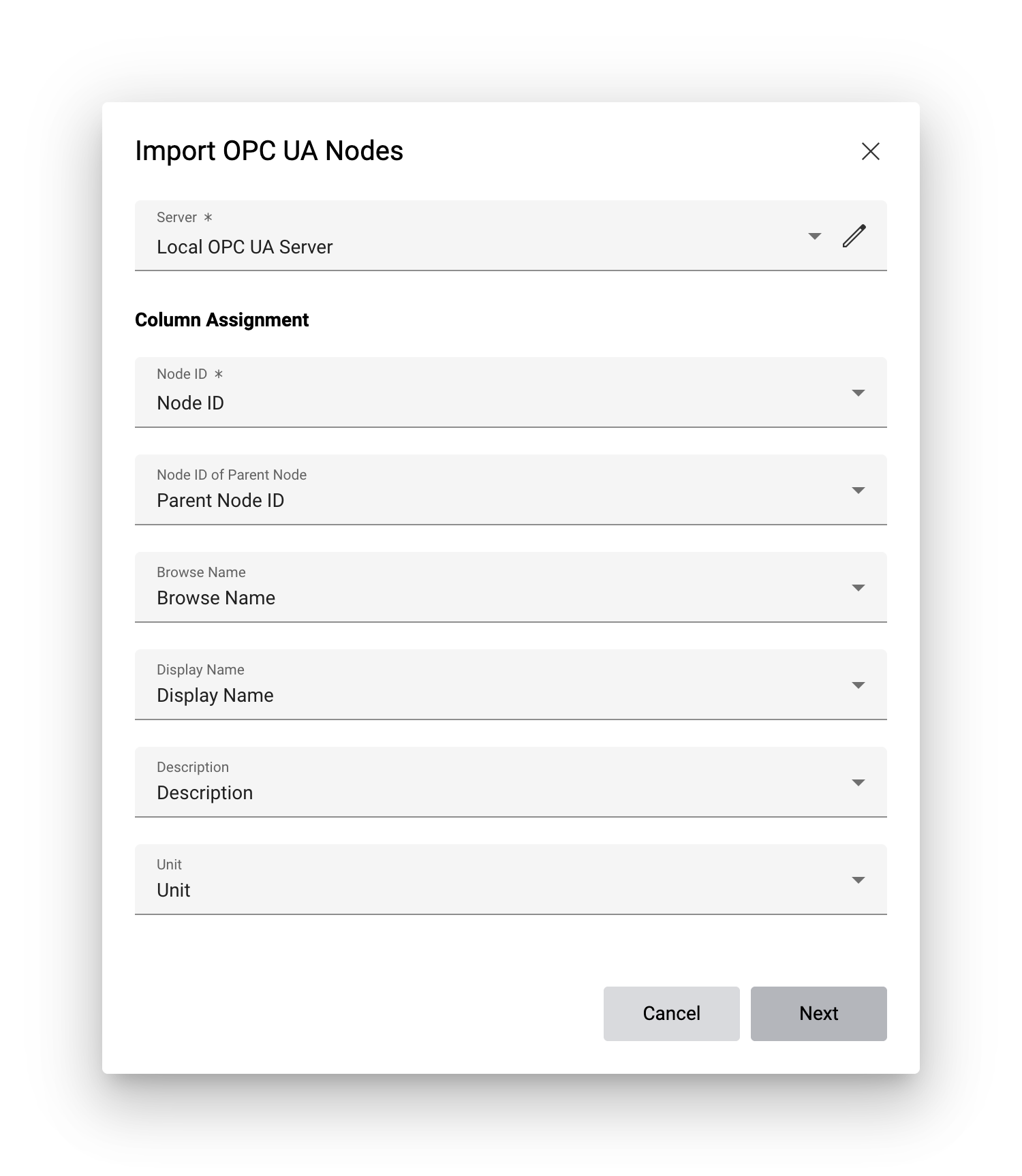
After you’ve selected the import file, you’ll have to specify a few details before you can start with the reconciliation:
- Server
Select the OPC UA server to which the nodes in the import file belong.
If you haven’t created an OPC UA server yet, you can do so by clicking on the Manage Server Connections button.
- Column assignments
In this section, you can specify which column in the imported file corresponds to which OPC UA attribute.
- Node ID
Mandatory. The node ID of the OPC UA node, consisting of the namespace index, the identifier type, and the identifier:
Example:
ns=2;s=Temperaturefor a string identifier orns=2;i=1234for a numeric identifier.- Node ID of parent node
The node ID of the parent node is used if you want to generate system names or descriptions for data points that are composed of the browse or display name of the imported OPC UA node and its ancestors.
- Browse Name
The system-facing identifier used by software clients to navigate and discover the address space programmatically.
- Display Name
The human-readable name of the node, which can be used for display purposes in user interfaces.
- Description
A textual description of the node, providing additional context or information.
- Unit
The unit of measurement for the node’s value, if applicable. Can be specified with the unit symbol (e.g.
°Cfor degrees Celsius orkWhfor kilowatt-hours.).
By default, the system assumes that the imported file only contains a subset of all OPC UA nodes of your project. This allows you to create or update data point at a later point in time without having to upload the entire list of OPC UA nodes every time. For this reason, existing data points will not be deleted by default if they are missing in the imported file. If you want to delete all existing data points that are not included in the imported file, you can enable the option Delete data points whose identifier is missing in the Options sidebar on the right during the reconciliation process. Note that this option is not available when importing OPC UA nodes from an external file. You can use the data point reconciliation wizard in Objects on the Network instead, though.