Toolbar
The toolbar at the top of the screen allows you to draw simple geometric shapes and to modify existing shapes. How to use dynamic shapes is described in the chapter Working with dynamic shapes.

The toolbar is used to place or edit simple drawing elements or to position complex shapes.
- Pan
Move the workspace by dragging it with this tool and zoom with the mouse wheel.
- Select
Select single or multiple shapes and move them.
- Line
Draw lines.
- Polygon
Draw polygons with straight edges.
- Ellipse
Draw ellipses.
- Rectangle
Draw rectangles.
- Image
Place an image.
- Text
Place any text.
- Link
Create a simple link to another schematic. Note that any shape can be configured as a link in the Properties sidebar.
- Note
Place a note.
- Chart
Create a Setpoint Curve or Comfort Chart.
- Snap to Grid
Automatically align shapes to a grid when they are dragged.
- Preview in Dark (or Light) Mode
Toggles between light and dark mode, allowing you to preview the schematic in both modes quickly. When you leave the schematic, the mode will be reset to the one configured in your user account.
- Undo
Undo the last local change. See here for more information.
- Redo
Redo the last undone change. See here for more information.
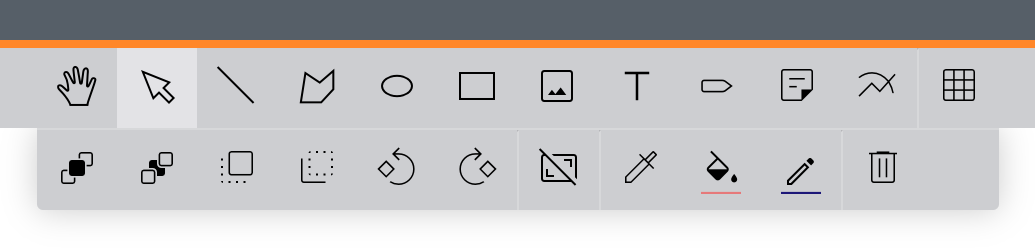
When shapes are selected, additional tools become available in the toolbar.
- Rotate Left 90°
Rotates the selected shapes 90° to the left around their respective centers.
- Rotate Right 90°
Rotates the selected shapes 90° to the right around their respective centers.
- Bring Forward
Moves all selected shapes one layer forward.
- Send Backward
Moves all selected shapes one layer backwards.
- Bring to Front
Moves all selected shapes to the foreground so that they cover all other shapes.
- Send to Back
Moves all selected shapes to the background so that they are covered by all other shapes.
- Reset Transformations
Resets the size of the selected shape to its original size.
- Eyedropper
Set the fill and line color of the selected geometric shape to the colors of another geometric shape.
- Fill Color
Set the fill color of the selected geometric shapes. However, this has no effect on shapes from the shape library.
- Stroke Color
Set the line color of the selected geometric shapes. However, this has no effect on shapes from the shape library.
- 1px Stroke Width
Set the line thickness of the selected geometric shapes. However, this has no effect on shapes from the shape library.
- Delete
Deletes the selected shapes and any connections between them.