Working with dynamic shapes
You can create schematics and schematic plans as follows:
Place shapes or data points on the worksheet,
configure the properties of the shapes and
assign data points to change the behavior of shapes.
The following sections explain the individual work steps in detail.
Shape library
To place shapes on the schematic, first open the shape library by clicking on the Library tab at the top left and then on the Shapes tab. All shapes from your shape library are now displayed.
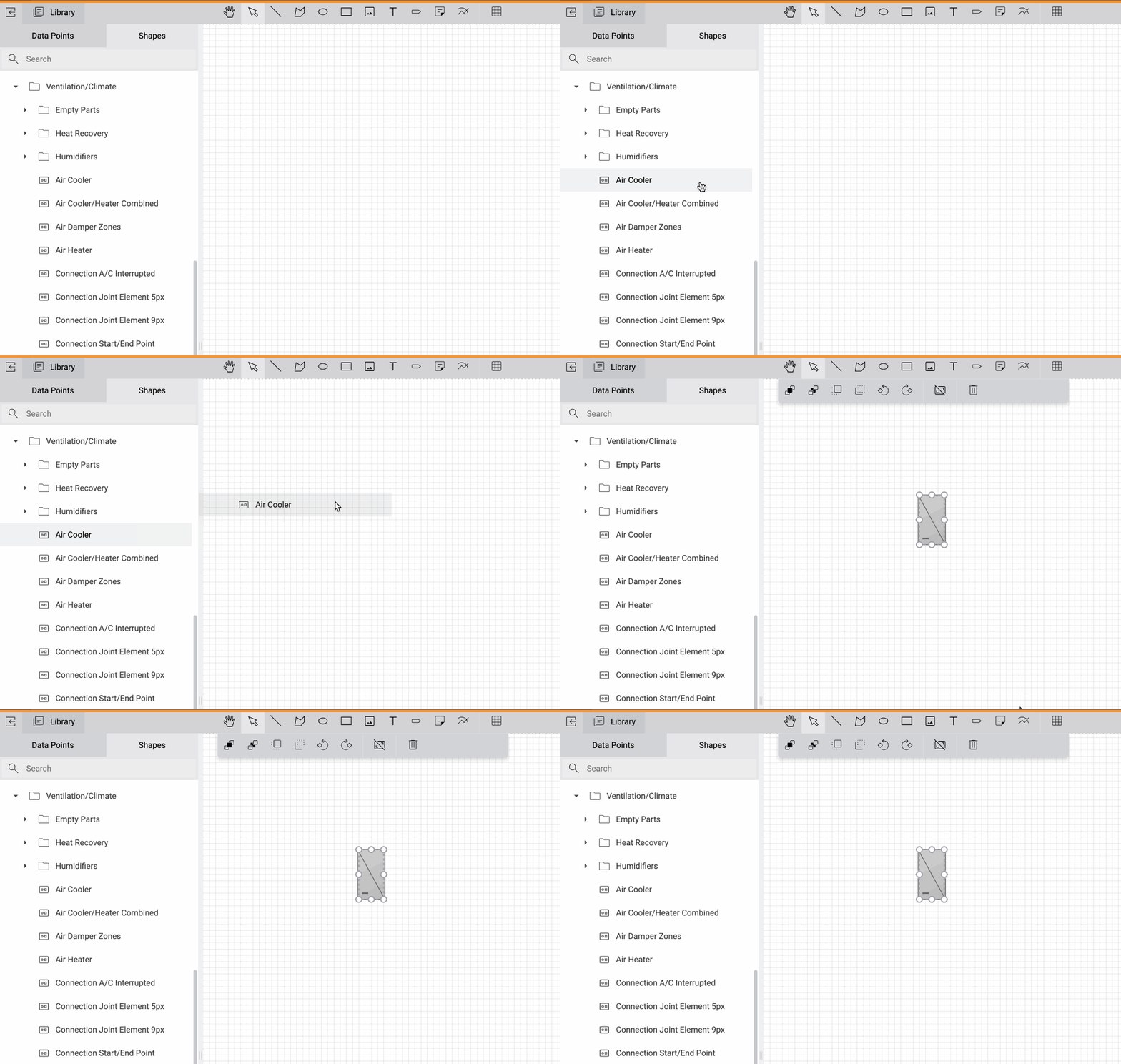
Drag a shape from the shape library onto the schematic to place it.
Place shapes on your schematic by dragging them from the shape library to the worksheet. You can recognize shapes by the following icon:
The shape library is structured hierarchically. You can search for specific shapes by entering the desired search term in the Search field above the shape library.
Note
You can also place data points directly on the schematic. A shape will be automatically added and the data point will be assigned to it. You can determine for yourself exactly which shape should be used for each type of data point (see Configure default shape types).
To edit shapes in your shape library, make sure you’re in edit mode on the schematic widget. Click on More at the top right of the schematic and then on Shape Editor.
Connect shapes
You can connect two shapes with a visual connection line by dragging from the connection stub of one shape to the connectrion stub of another shape.
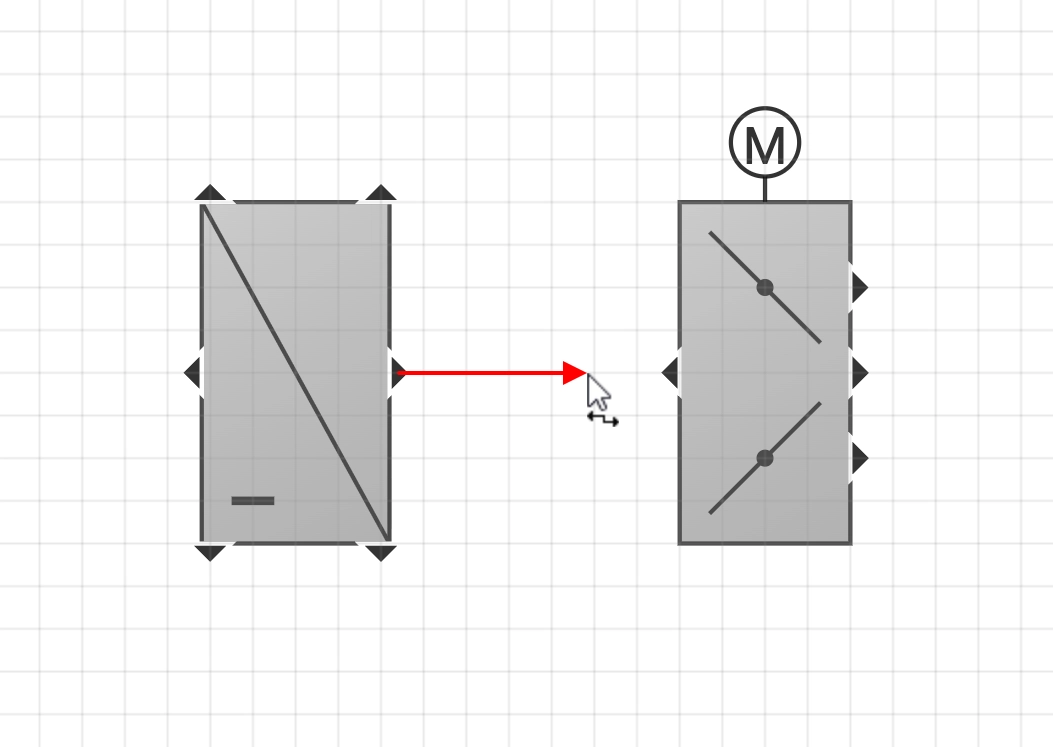
Once the connection is created, you can click on it to select it. In the Properties sidebar on the right, you can change the Connection Type of the connection, which determines the appearance of the connection. Connection types can be configured in the Shape editor on the Connection types tab.
Shape properties
To edit properties of placed shapes, first select the desired shape on the worksheet by clicking on it and then open the Details panel on the right hand side and select the Properties tab.
For a full description on all available shape properties, see Shape properties.
Data point
If exactly one data point has been assigned to a shape, its properties are also displayed.
- Bus Address
The internal address of the bus object. The format depends on the respective bus type.
- Data Point Type
The type of the data point.
- Decimals
The number of decimal places with which live values are displayed on the schematic or in other widgets.
- GUID
The global, unique identifier of the data point.
- Label
The description of the data point in human readable form.
- Physical Quantity
The physical measured variable.
- System Name
The systematic name of the data point, for example the object code based on the plant identification system (AKS).
- Display Unit
The unit in which the data point is displayed on the schematic or on other widgets.
- Default Unit
The unit in which the device delivers the measurement values.
Assigned data points
The appearance and behavior of shapes can be changed by assigning data points to them. To assign data points, open the Data Point Assignment tab at the bottom and drag data points from the data point sidebar to the desired behavior rule.
The behavior rule is then automatically applied as soon as live values of the data point are received and match the condition of the behavior.
Remove incorrectly placed data points simply by clicking Remove Data Point.
The available behavior rules or data point slots can be edited in the shape editor (see Shape behavior).

In the Data Point Assignment sidebar at the bottom of the screen, you can assign data points to your shapes, which are then used in the visualization and behavior of the shape.
Note
If the selected shape comes from a master page, you can overwrite any possible data point placements of the master page by simply dragging another data point onto an existing placement. You can restore the placement of the master page by removing the overwritten data point by clicking Remove Data Point.
Generate shapes
The option More ▸ Generate Shapes allows for automatic placement of shapes. This is especially helpful while setting up a new schematic.
Prerequisites: To use the feature, all involved shapes must have a system name set in their shape configurations (see System name in behavior rules), so that the system can match data points to them.
You will be asked to provide the system name prefix of your plant identifications, and the system will search for all data points that match this prefix. All shapes whose system names match a system name of any of these data points will be placed on the schematic, and the data points are then automatically assigned to these new shapes, if possible.
Click on Next to see a preview of all new shapes and their placed data points. You can go back and fix the system name prefix if the preview is not correct, or click Apply to generate the shapes.
Example
Assume you have a number of offices (A - C), and 1 or 2 climate sensors per room, marked as 001 and 002, respectively. The system names of these data points might look as follows:
Office A:
OfficeA_Sensor001_Temp,OfficeA_Sensor001_Hum,OfficeA_Sensor002_TempandOfficeA_Sensor002_HumOffice B:
OfficeB_Sensor001_Temp,OfficeB_Sensor001_Hum,OfficeB_Sensor002_TempandOfficeB_Sensor002_HumOffice C:
OfficeC_Sensor001_Temp,OfficeC_Sensor001_Hum
If you want to generate shapes that are automatically filled with the correct sensor data points depending on the office in which they’re located, you can set Sensor%L_Temp and Sensor%L_Hum as the system name in the definition of your shape.
%L acts as a placeholder for any alphanumeric sequential number (e.g. A, B, C… or 0, 1, 2…).
In our example, Sensor%L_Temp matches the temperature data point, while Sensor%L_Hum matches the humidity data point in any of the sensors.
You can now click on More ▸ Generate Shapes.
In our example, we enter the text OfficeA_ in the wizard.
Based on our example shape and the data points listed above, we expect to see two new shapes on our schematic for office A, one for sensor 1 and one for sensor 2, each with two data points (temperature and humidity, respectively).
Place data points automatically
Instead of selecting shapes individually and assigning data points manually to each of them, go to More to select the option Place Data Points Automatically. This option can be especially useful when shapes are already added to your schematic and you need to add data points to the shapes.
Prerequisites: To use the feature, all involved shapes must have a system name set in their shape configurations (see System name in behavior rules), and the System Name property on every placed shape on the schematic must be set so that ambiguous assignments are prevented if there are multiple matching data points.
In the field System Name Prefix, enter the first part of the system name that denotes the room or location of the installation depicted on the schematic, and all the matching data points will automatically be assigned to your already placed shapes.
The input also accepts * and ?, which will match a single arbitrary character (?) or multiple arbitrary characters (*), respectively.
To find appropriate data points, the system takes the system name prefix from the dialog, the system name defined on each shape instance and the system name expression on the shape configuration into consideration.
Only data points that satisfy all three patterns will be assigned.
- Scope
Define which shapes should be included:
Group: All shapes on all schematics of the current group.
Page: All shapes on the current schematic (default).
Selected: Only the selected shapes on the current schematic.
- Preserve existing assignments
Existing data point assignments will not be changed or removed. Only new data point assignments will be added.
- Remove existing assignments if they don’t match
Existing data point assignments will be removed if no matching data point can be found for that slot on the shape. This option is ignored when Preserve existing assignments is selected.
Click on Next to see a preview of all the data point assignment changes. You can go back and fix the settings if the preview is not correct, or click Apply to apply the data point assignments.
Replace data points
This option allows you to easily replace already assigned data points on a schematic with others, for example if the schematic is a copy of another schematic and all data points need to be substituted. You can also specify whether existing data point placements that don’t match the system you searched for should be deleted or simply ignored. To use this option, go to More in edit mode and click on Replace Data Points.
Check data point assignments
The system offers an automatic check to determine whether all shapes have been equipped with the necessary data points. This eliminates the need to manually check each individual shape to verify the completeness of the data point assignments.
On the corresponding schematic, click on More at the top right and then on Check Data Point Assignments. The system then generates an Excel workbook with different pages which breaks down all the behavior rules and the data points placed in them.
. |
Correct Data Point Placements |
Lists all data points that have been placed in shapes and whose system name (AKS code) matches the default from the shape. |
. |
Unused Data Points |
Lists all data points that have been assigned to the current group by a data point filter but have not been placed on the schematic. |
. |
Required Placements |
Lists all data point placements that the shape specifies as being required. You can change this specification by editing the affected shape in the shape editor and activating or deactivating the option Data point required to pass the quality check in the corresponding shape behavior. |
. |
Wrongly Placed Data Points |
Lists all placed data points whose system name does not match the default from the shape. |
. |
Unused Data Points |
Lists all data points that have been assigned to the current group by a data point filter but have not been placed on the schematic. |
. |
Summary |
A compilation of all other worksheets. Each row is marked with the color of the corresponding worksheet. |
Note
All schematics of the current group and all subgroups are included in the check of the data point placements. This allows the data point placements of an entire system or subsystem to be checked all at once.
Restrict access to shapes
By default, all users that have access to a schematic are also allowed to control them. However, you can restrict access rights to certain shapes and allow only specific users to manipulate data points via the schematic.
To do so, click on More in the toolbar at the top and then on List to switch to the list view. All shapes that are placed on the schematic are listed here, along with the data points they contain.
Select on or several rows whose access rights you want to restrict, and then click on the icon Restrict Write Access with User Groups at the top right. In the following dialog you can assign the user groups that are allowed to write on the selected data point properties. The assigned user groups will also appear in the column User Groups.
Data point bar
You can place frequently used or common data points in the toolbar located below the schematic. These will always be displayed below the schematic, even if you zoom or pan.
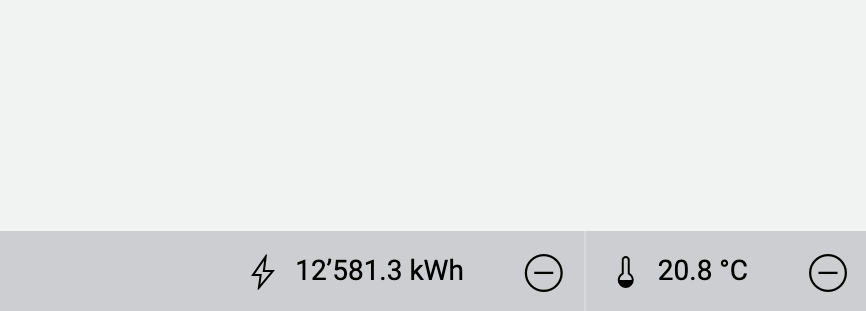
Place data points in the bottom toolbar to keep an eye on general measurements.
Switch to edit mode by clicking Edit at the top right.
Drag any data point from the data point sidebar to the toolbar at the bottom of the screen to attach it. For each data point, a symbol for the medium type and the current measurement value will be displayed.
You can change the order of the data points by dragging them within the toolbar. To remove a data point from the toolbar, click on Remove next to the respective data point.
Configure default shape types
If you drag a data point directly onto the schematic, a data point shape is created automatically. You can specify for each data point type separately which shape type should be used for it.
Open the data point sidebar by first clicking on the Library button at the top left and then on the Data Points tab.
On the data point tab, click on Configure Default Shape Types.
In the following dialog, select the desired data point type at the top left. If necessary, change the protocol first.
On the right-hand side, you can now select which shape type should be used when you drag a data point of the corresponding type onto the schematic in the future.
Confirm the configuration with Save.
Note
Note that these settings are saved per user. Each user can define for themselves which shapes they want to use when placing data points. Changes have no effect on the default shape types of other users.
Changes to the default shape type assignments have no effect on already placed shapes.
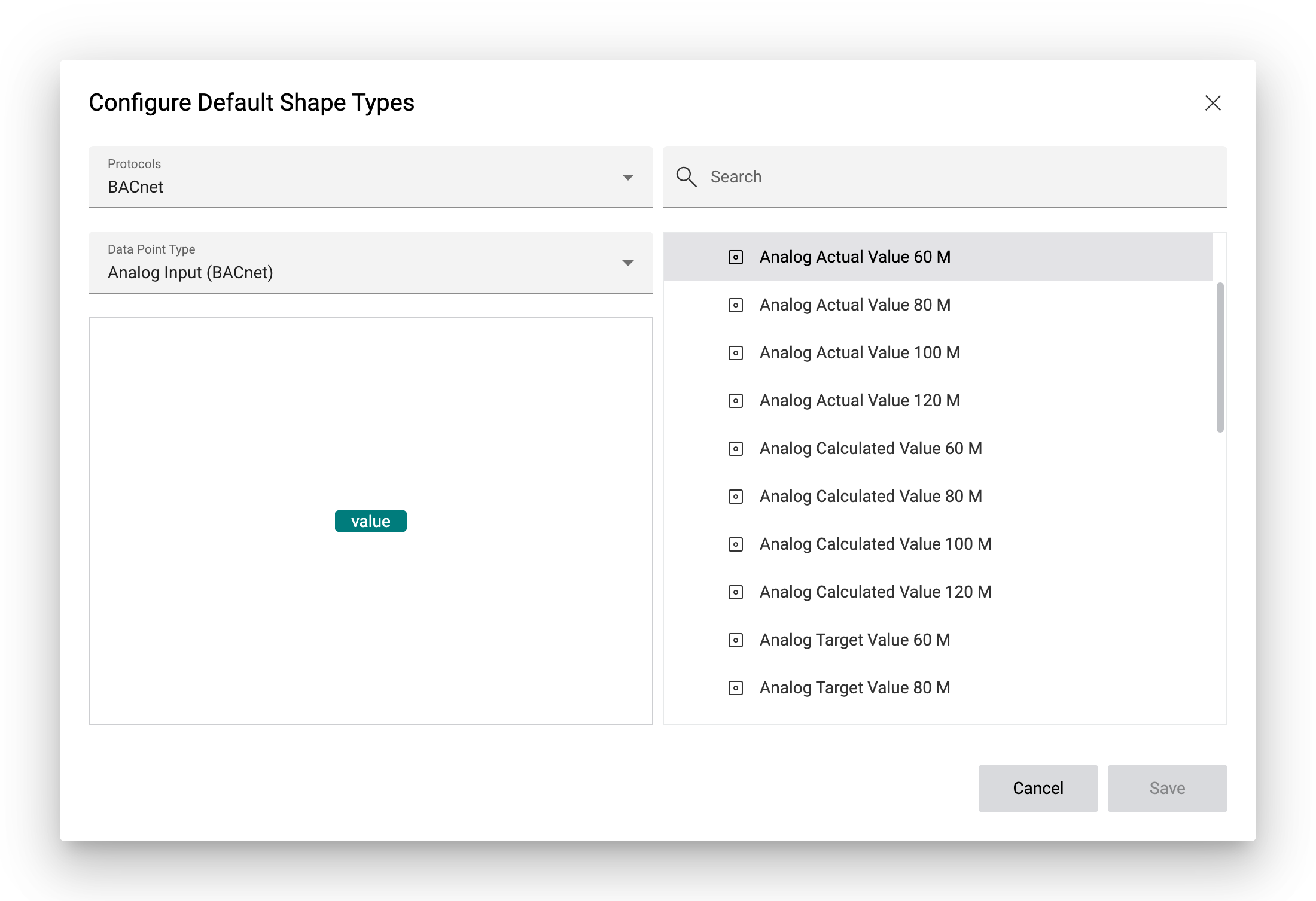
This dialog is used to assign data point types to shape types.
Schedules and calendar objects
If you drag a BACnet schedule or BACnet calendar data point on the schematic, a visual representation of the schedule is displayed when the user clicks on the shape in view mode.
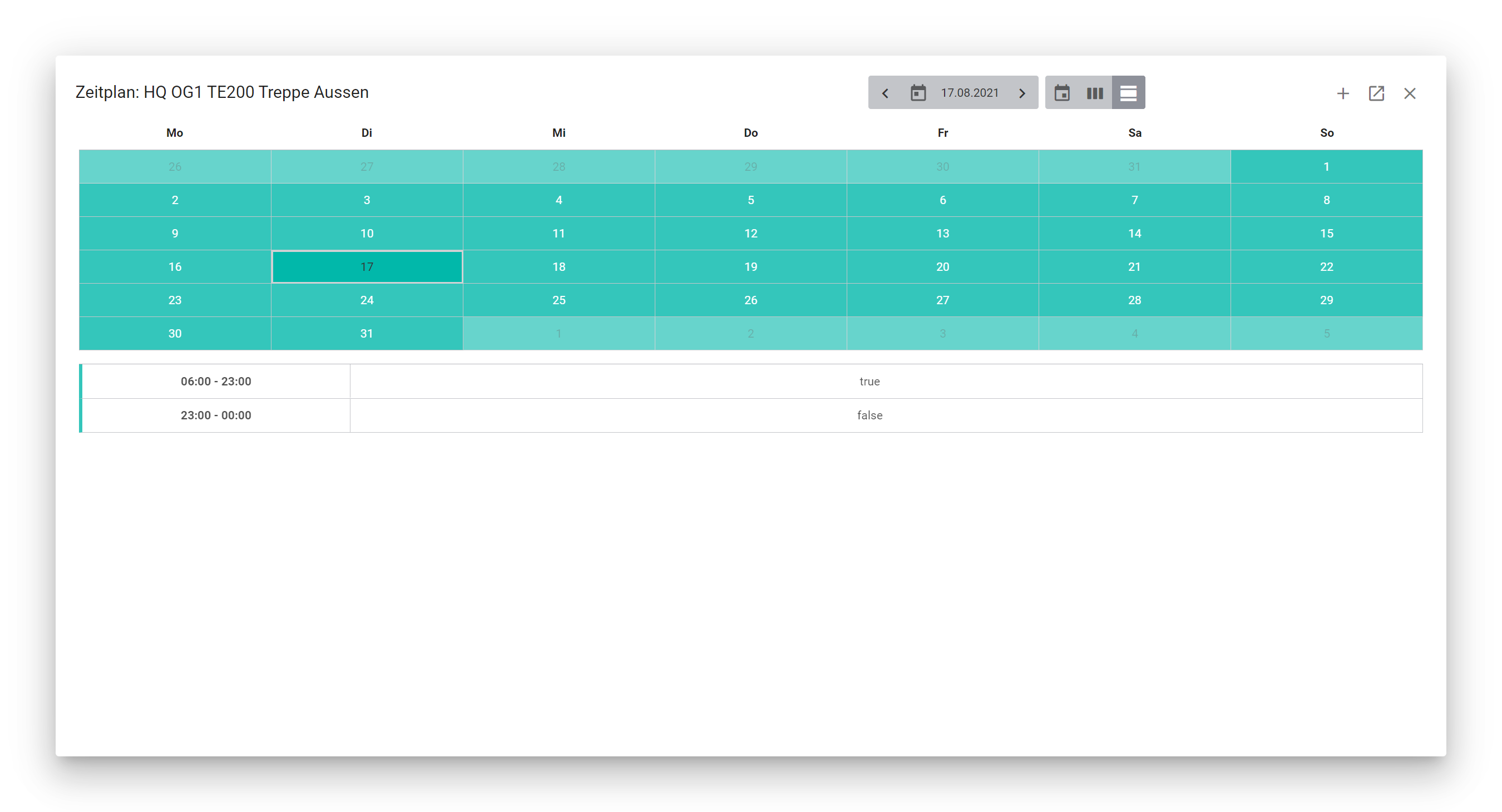
If you have the appropriate rights, you can add new items to the schedule with Add, edit or delete existing items, or navigate to the details of the data point by clicking on Go to Data Point at the top right.