Dashboard download
To access download options for a dashboard, make sure you’re in edit mode by clicking on Edit Dashboard at the top right. Then, click on More ▸ Download to open the Dashboard Download dialog.
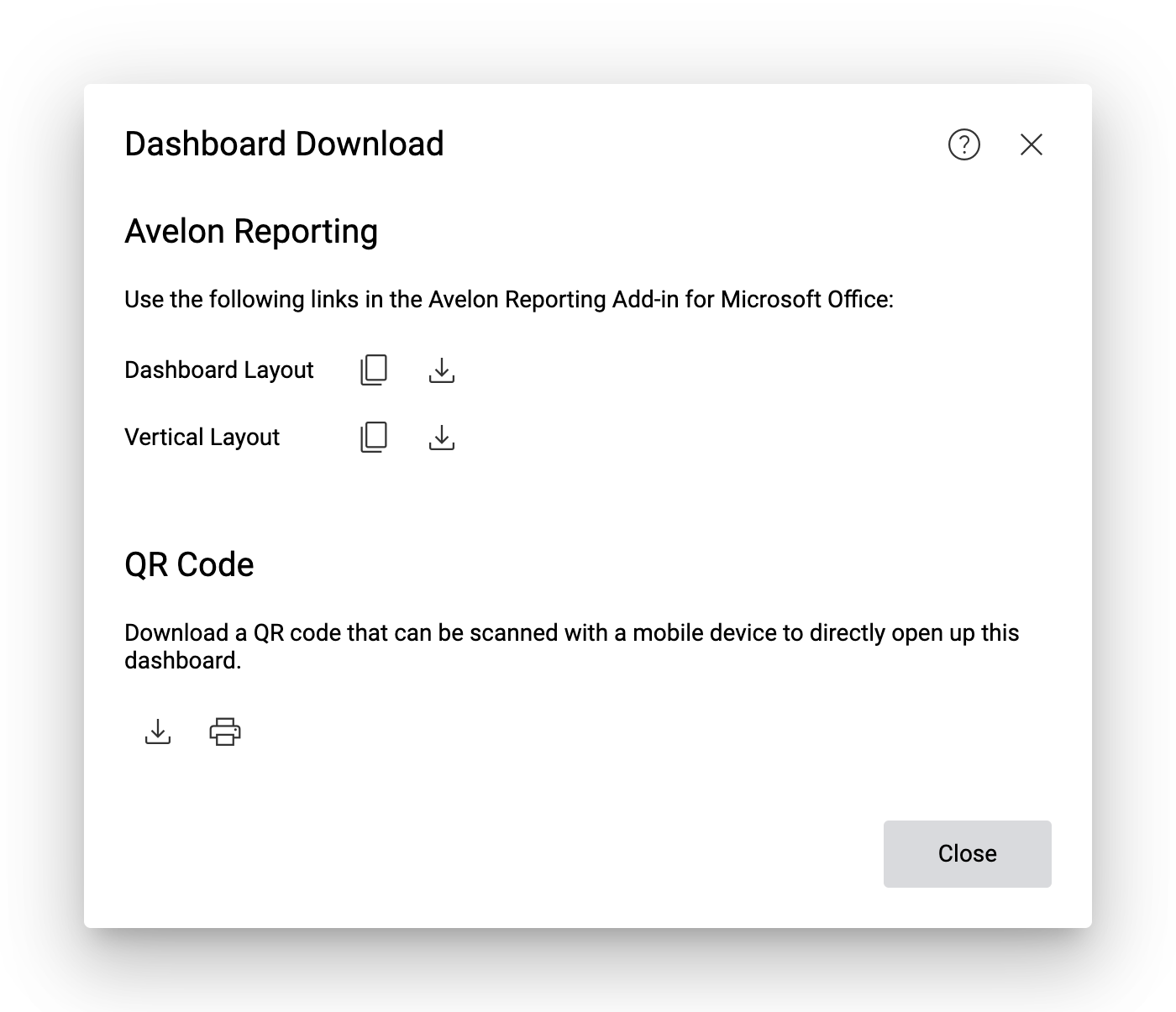
Avelon Reporting
Avelon Reporting lets you insert widgets of your dashboard in your automated reports. To do so, click on Copy Link to Clipboard next to your preferred choice of layout, and then paste the copied URL into the Source field of the dialog that appears when you click on Dashboard in the Avelon Reporting ribbon in Microsoft Office.
- Dashboard Layout
The individual widgets are arranged in the same way as they are on the dashboard, and the resulting image is scaled to fit the width of the gray bounding box in your report template.
- Vertical Layout
The individual widgets are arranged in a single column, and the resulting image is scaled to fit the width of the gray bounding box in your report template.
Note
The download options for Avelon Reporting are only available if you have sufficient Energy Reporting licenses. All data points that are used in the widgets of the current dashboard must have a valid Energy Reporting license assigned. See Data point licenses.
Copy URL to clipboard or download file
If you click on Copy Link to Clipboard, only the URL to the dashboard data is copied to the clipboard. You can insert this URL in Avelon Reporting as described above. Each time a new report is generated, Avelon Reporting will evaluate this URL, and the data will automatically be updated with the most recent information from Avelon Cloud.
If you want to see what data is behind the URL, you can click on Download to download the data as an XML file. However, this file cannot be used in Avelon Reporting directly and is only intended for debugging purposes.
Note
Whenever possible, use the Copy Link to Clipboard option if you want to use the dashboard in Avelon Reporting.
QR code
You can generate a QR code that users can scan with their mobile devices to directly open the current dashboard.
Click on Download to download a PDF file containing the QR code for the current dashboard. The QR code will be placed on a document measuring 102 × 64 mm, which can be printed on a thermal transfer label for increased durability with a suitable printer (e.g. Zebra), or on regular paper with any printer.
If you want to print the PDF file without downloading it to your computer, click on Print, which will open the print dialog of your browser immediately.