Approve permissions
When the app is opened for the first time, you’ll be asked to grant a few permissions. Follow the intructions to make sure the app can work correctly.
When asked to allow Heads-up! to send you notifications, confirm with Allow.
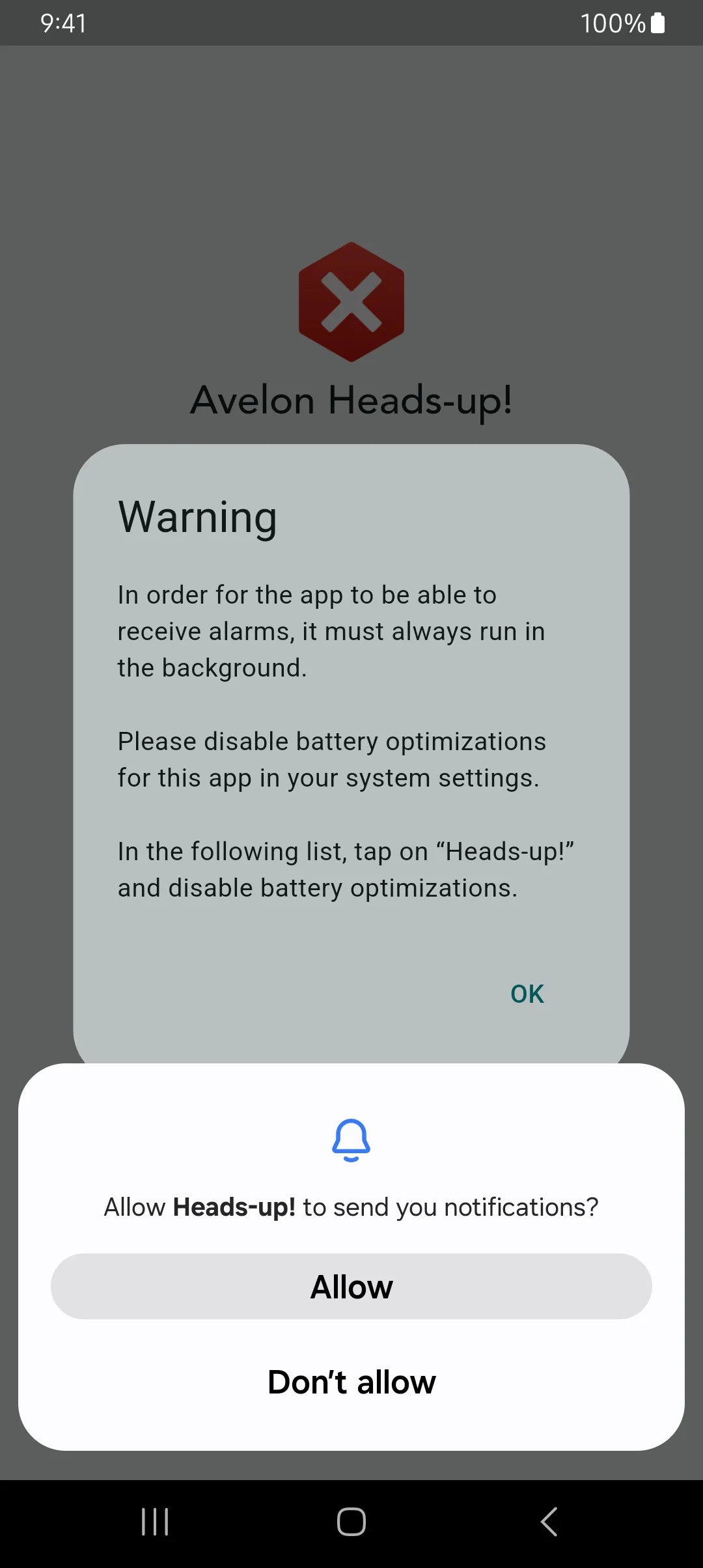
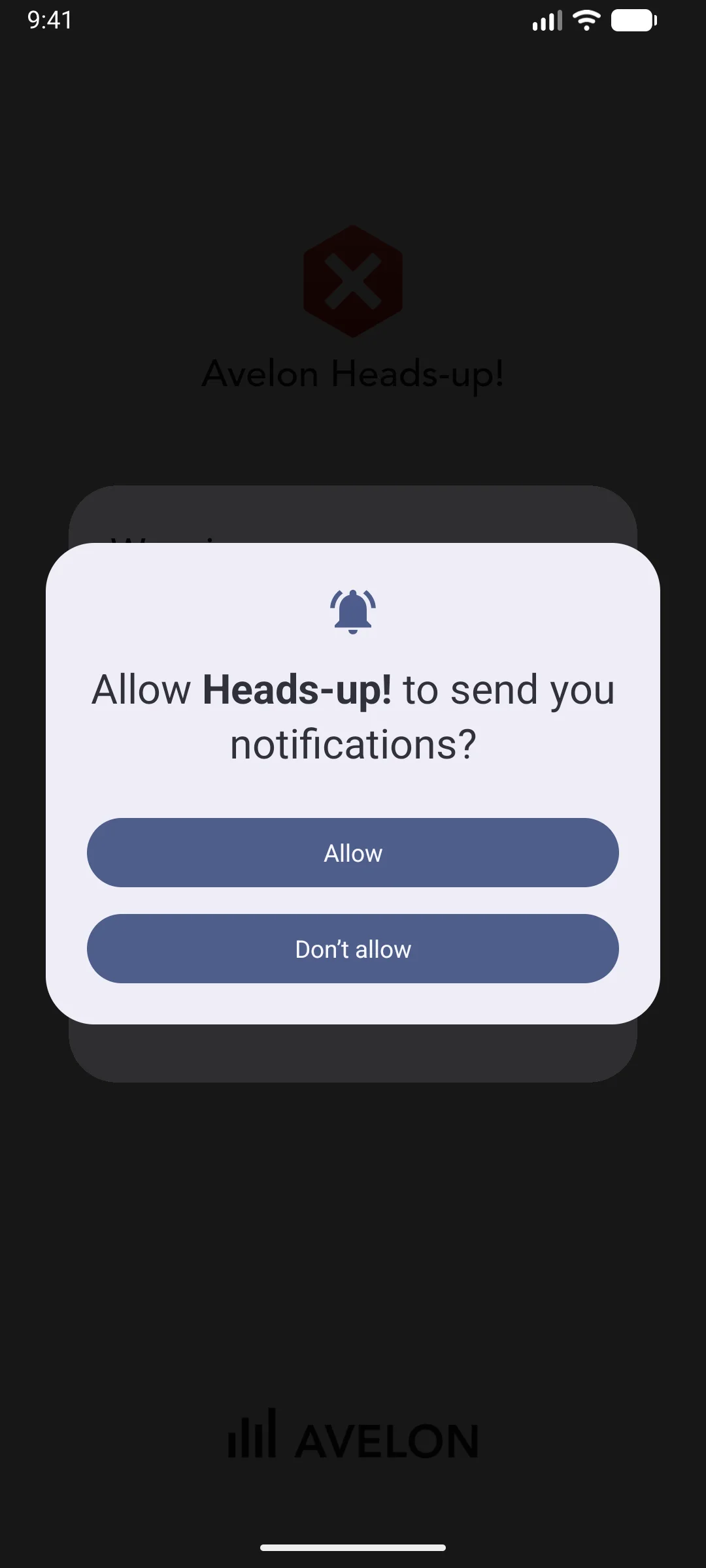
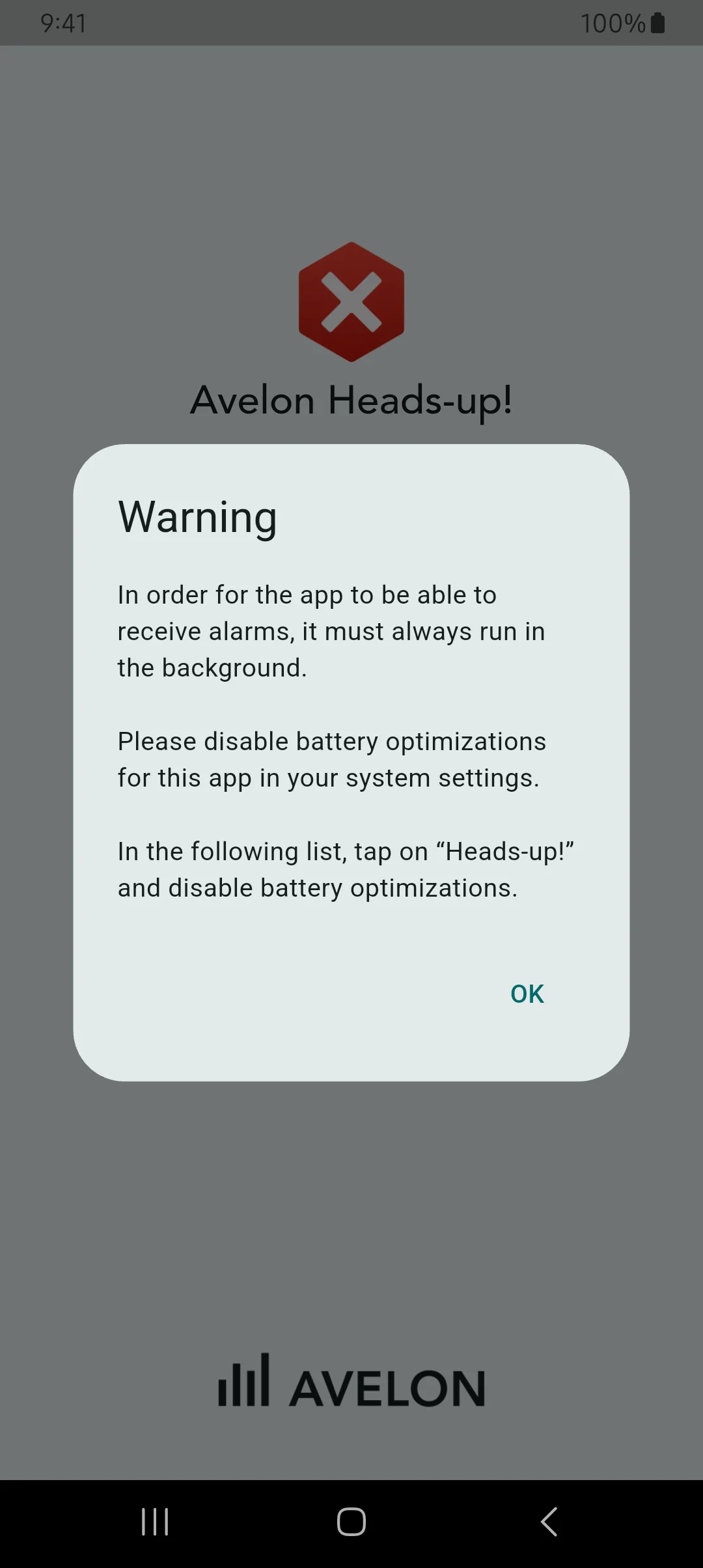
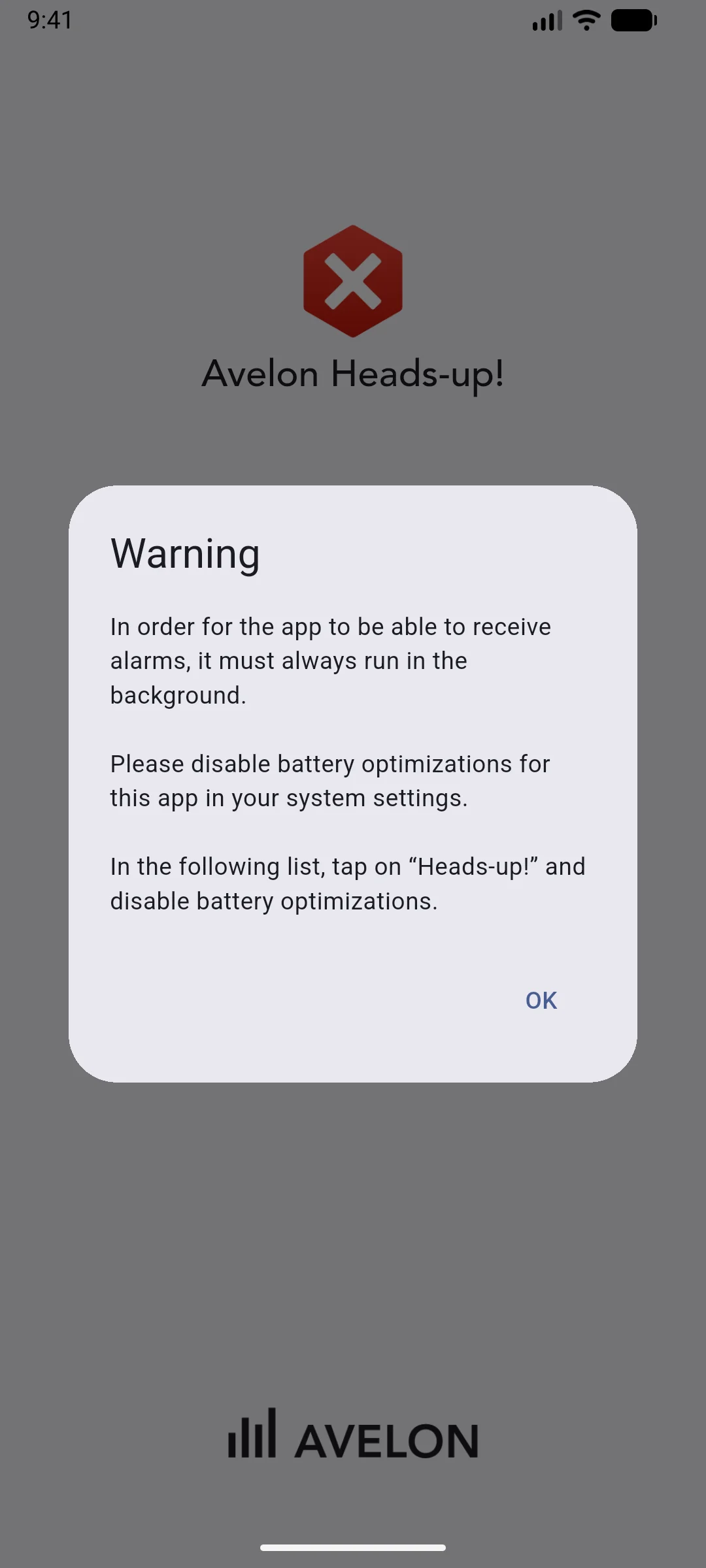
The app will then show instructions to disable battery optimizations. Confirm the warning with OK.
You will then be redirected to the system settings to disable battery optimization for the app. The actual steps depend on your phone.
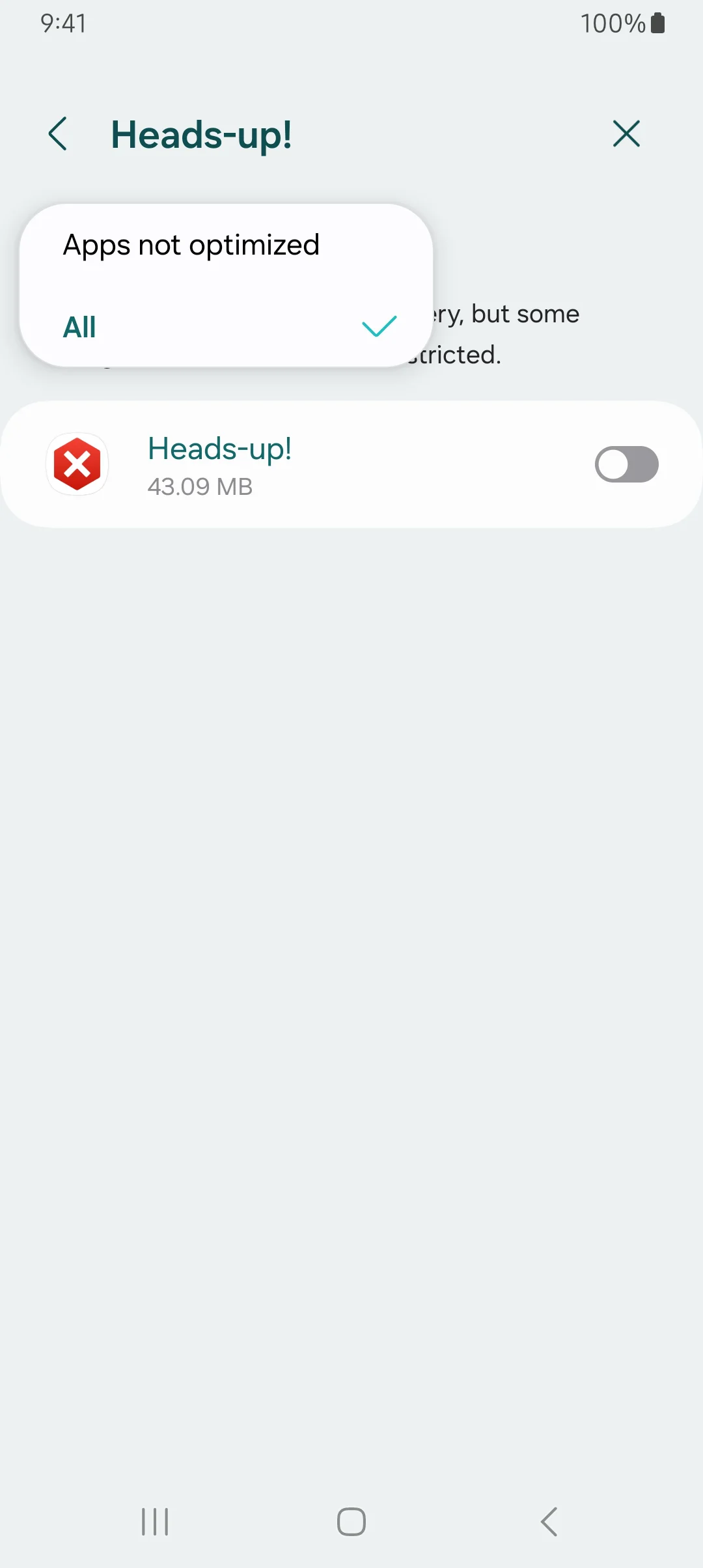
If you’re redirected to the Optimize battery usage page, change the filter at the top from Apps not optimized to All, search for Heads-up! and make sure that the toggle button is disabled to turn off battery optimizations, as shown in the screenshot below.
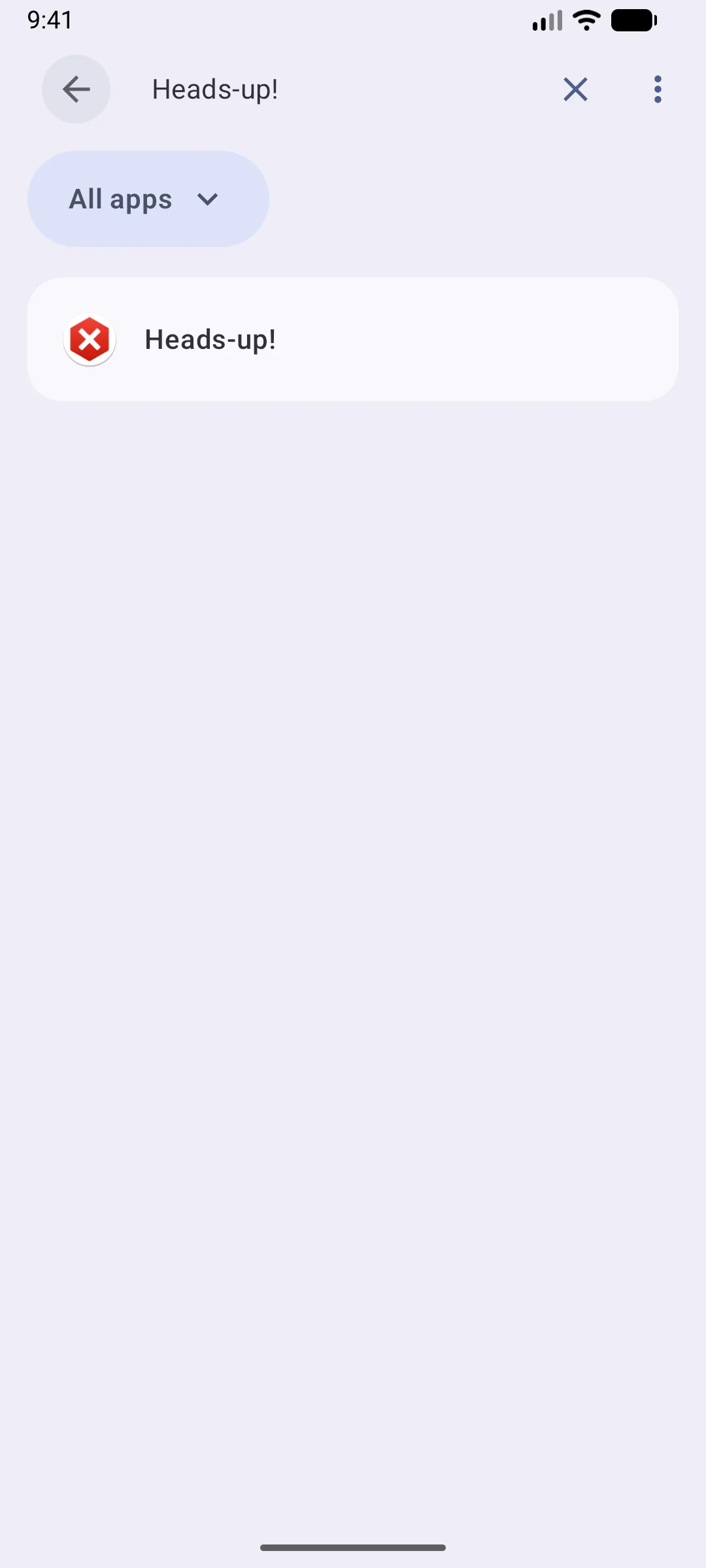
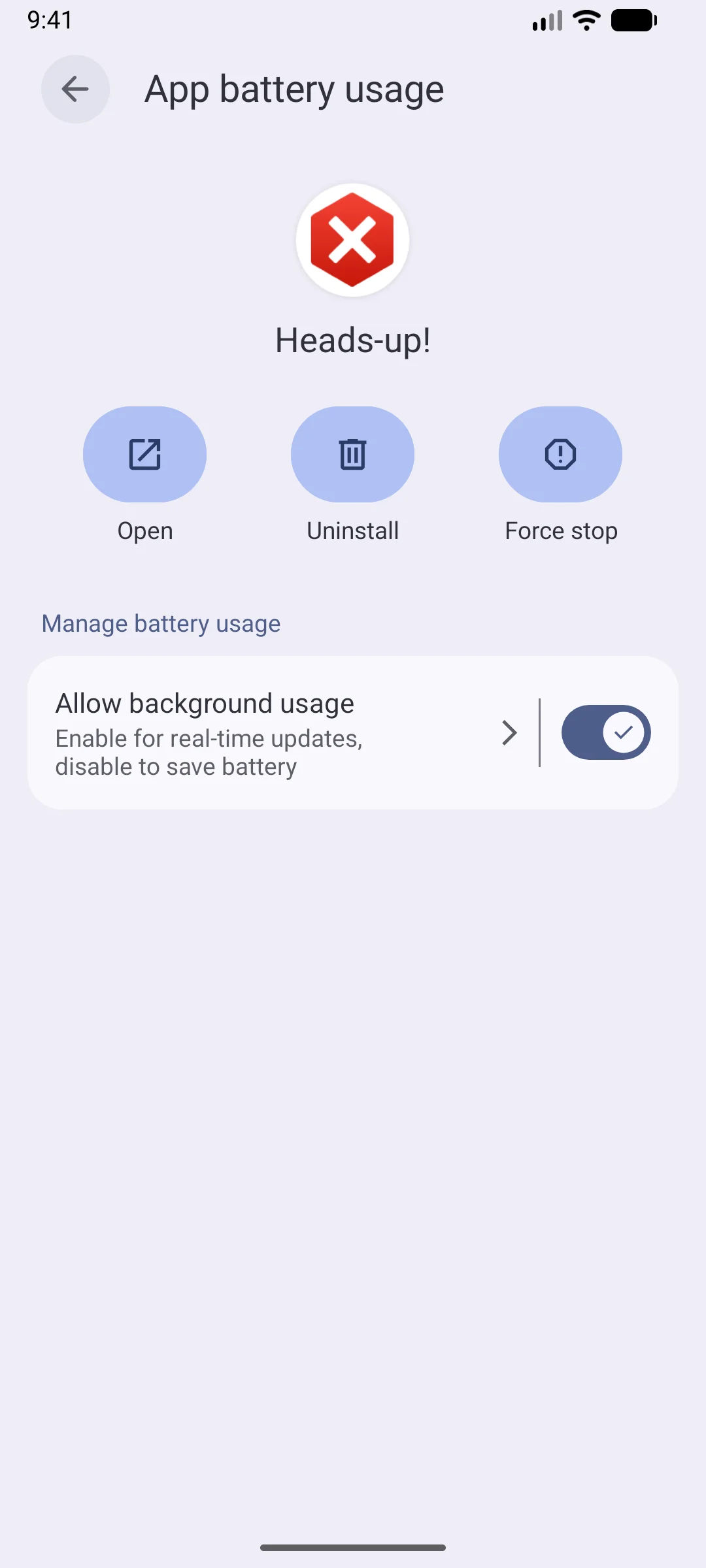
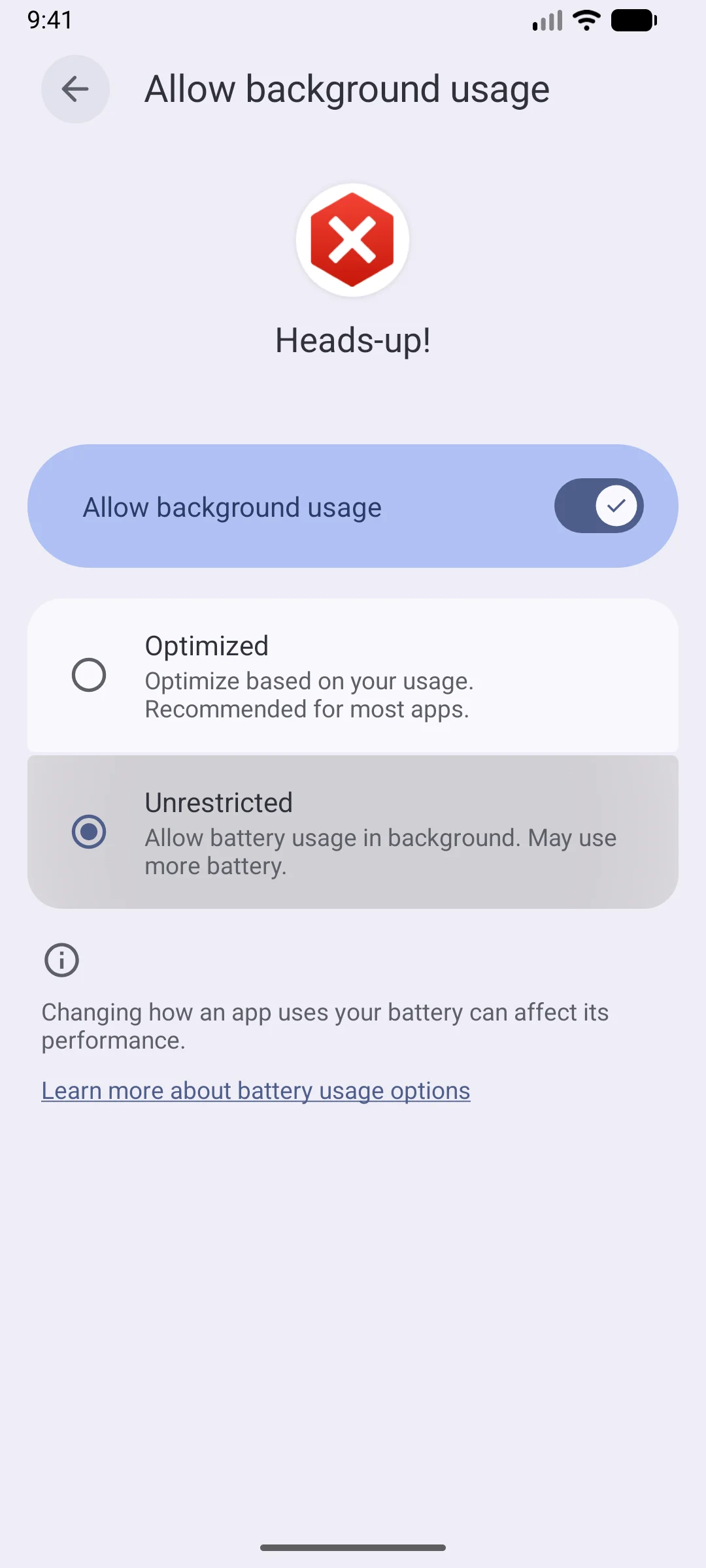
Otherwise, change the filter at the top to All Apps, search for Heads-up! and tap on it. On the following page App battery usage, make sure that Allow background usage is enabled, then tap on the arrow pointing to the right and select Unrestricted on the next page.
Tap on the Back button at the top left until you’re back on the login screen.
You can review your permission settings at any time. Please follow the App permissions guide.