Support
Some support tasks are subject to a charge, for example analyses of bus systems, support for third-party products or project-related work. If you would like support from Avelon, we recommend that you purchase support hours in advance. The service for the purchased support hours can then be claimed within three years. On the Support tab, you can view past support requests with Avelon, and you can purchase additional hours for future support requests.
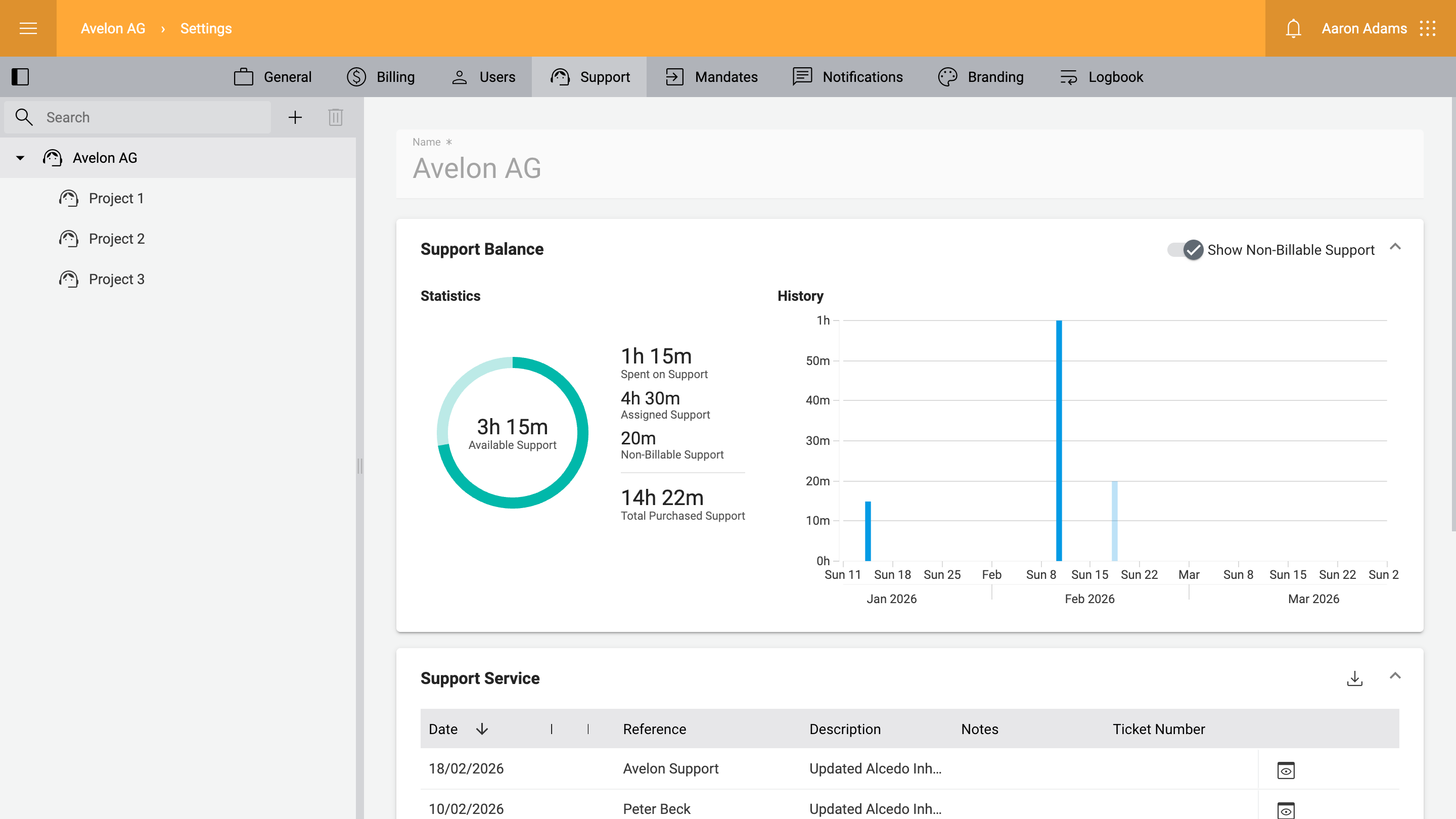
Support balance
This card shows how much support was provided and how much support is still available. The chart on the right breaks down the support hours by date.
To purchase additional support hours, click on Purchase Support Hours on the left.
Statistics
The statistics show you how much support was purchased, spent or is still available.
- Available support
The amount of support that is still available for the selected client or support group.
Available support is calculated as follows:
\(\text{Available support} = \text{assigned support} - \text{spent support}\)
This calculation is performed separately for each support group. Non-billable support is not included in this calculation, since it does not affect the available support time.
- Spent on support
The amount of support that has already been spent for the selected client or support group. Note that this number does not include non-billable support, which is support that has been provided but won’t be charged.
- Assigned Support
The amount of support that is directly assigned to the selected client or support group. If support time is assigned to a support group, the amount of support time on the client will be decreased accordingly.
- Non-billable support
The amount of support that has been provided for the selected client or support group, but that is not billable. Non-billable support will not count towards the available support time and is not included in the spent support above, either.
- Total purchased support
The total amount of support that has been purchased for the selected client, which also includes the support from all subgroups.
History
The support history shows the support requests that have been recorded for the selected client or support group by time.
Hover over a bar to see the date and the amount of support time that was spent on that date, and whether the support was billable or not.
You can include or exclude non-billable support from the chart by using the toggle button Show Non-Billable Support at the top right of the chart.
Support service
In the Support Service table, all previous support cases are listed, together with a short description and an optional reference to the real estate or project. You can sort and filter the table by any column or download it as an Excel file by clicking on Export to Excel at the top right of the table.
Billable support will automatically be deducted from the available hours. Non-billable support will also appear in the list, but it won’t affect the available hours.
To see more details about a support request, click on Show Details on the right.
- Date
The date on which the support was provided.
- Time required
The amount of time that was required to provide the support.
- Real estate
The real estate for which the support was provided, if applicable.
- Building
The building for which the support was provided, if applicable.
- Reference
The reference associated with the support request, if applicable. Can be a project name, a project number, a contact person, etc.
- Description
A brief description of the work that was performed or the problem that was solved.
- Ticket number
The ticket number associated with the support request, if applicable.
- Billable
Indicates whether the support is billable. Only billable support will be deducted from the available support hours.
- Billed
Indicates whether the support has already been billed.
- Customer notes
Add your own notes to the support item with details that are relevant to you.
Purchase history
The purchase history shows you how much support was purchased and when.
- Date
The date on which the support hours were purchased.
- Product name
The name of the support product that was purchased. Support is available in packages of hours or minutes.
- Reference
The reference associated with the purchase, if applicable. Can be a project name, a project number, a contact person, etc.
- Quantity
The number of support products that were purchased.
- Invoice number
The invoice number associated with the purchase, if applicable.
Note that the support history is only available on the main support group.
Purchase support hours
In order to purchase additional support hours, make sure you are on the client for which you would like to make the purchase, and click on Purchase Support Hours on the Support Balance card. You will be redirected to the Avelon webshop. Enter the number of support hours you would like to purchase, and follow the checkout process. After the purchase, the support hours will be immediately available for your client.
Manage support for individual projects
By default, support hours are assigned to the client from where it was purchased. However, you can create support groups and assign support hours to them, for example to manage support for individual projects.
In the sidebar on the left hand side, you can create a support group by clicking on Add Group.
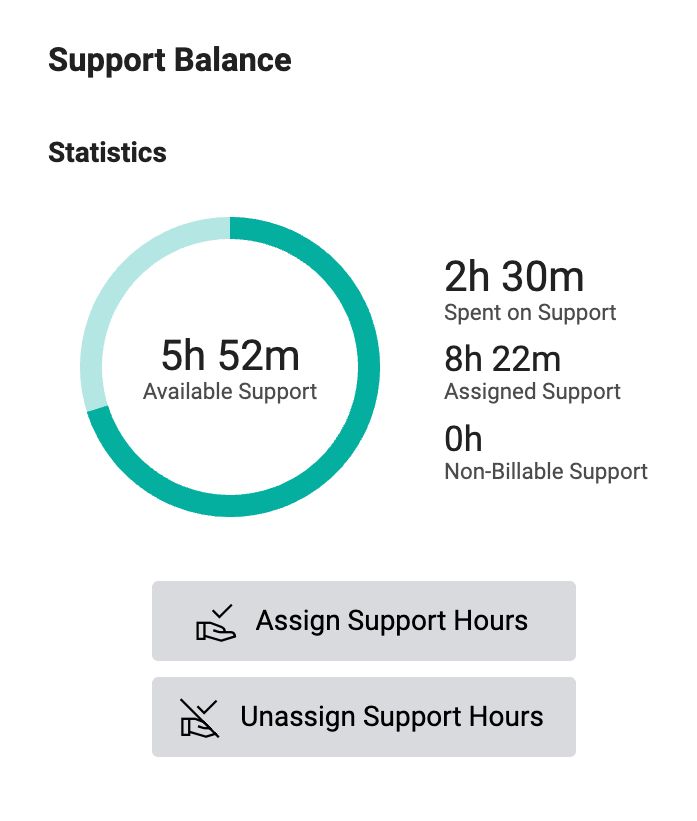
On the Support Balance card on a specific support group, you can assign support hours from the client to the subgroup by clicking on Assign Support Hours. Then specify the amount of support that you would like to transfer from the client to the subgroup. The available support for this subgroup will then be increased accordingly, and the available support from the client will be decreased by the same amount, since the support hours are now reserved for this subgroup. Note that you cannot assign more support time than is currently available on the client.
If you have unspent support time in a support group that you no longer need, you can unassign it by clicking on Unassign Support Hours. Then specify the amount of support that you would like to transfer back to the client. Note that you cannot unassign more support time than is currently available on the subgroup.