Manual integration of Lumina Operation Center
To integrate a Lumina Operation Center on a base system while the two devices are not able to communicate with each other via the network, you can integrate them manually as described below.
Note that this process is only available to privileged administrators.
Lumina Operation Center |
Base system (Avelon Cloud or Alcedo Inhouse) |
In the device registration wizard, click on Manual Device Integration on the Device Integration page.
On the Manual Device Integration page, click on Download Integration File to download the integration file. Save it on your computer.
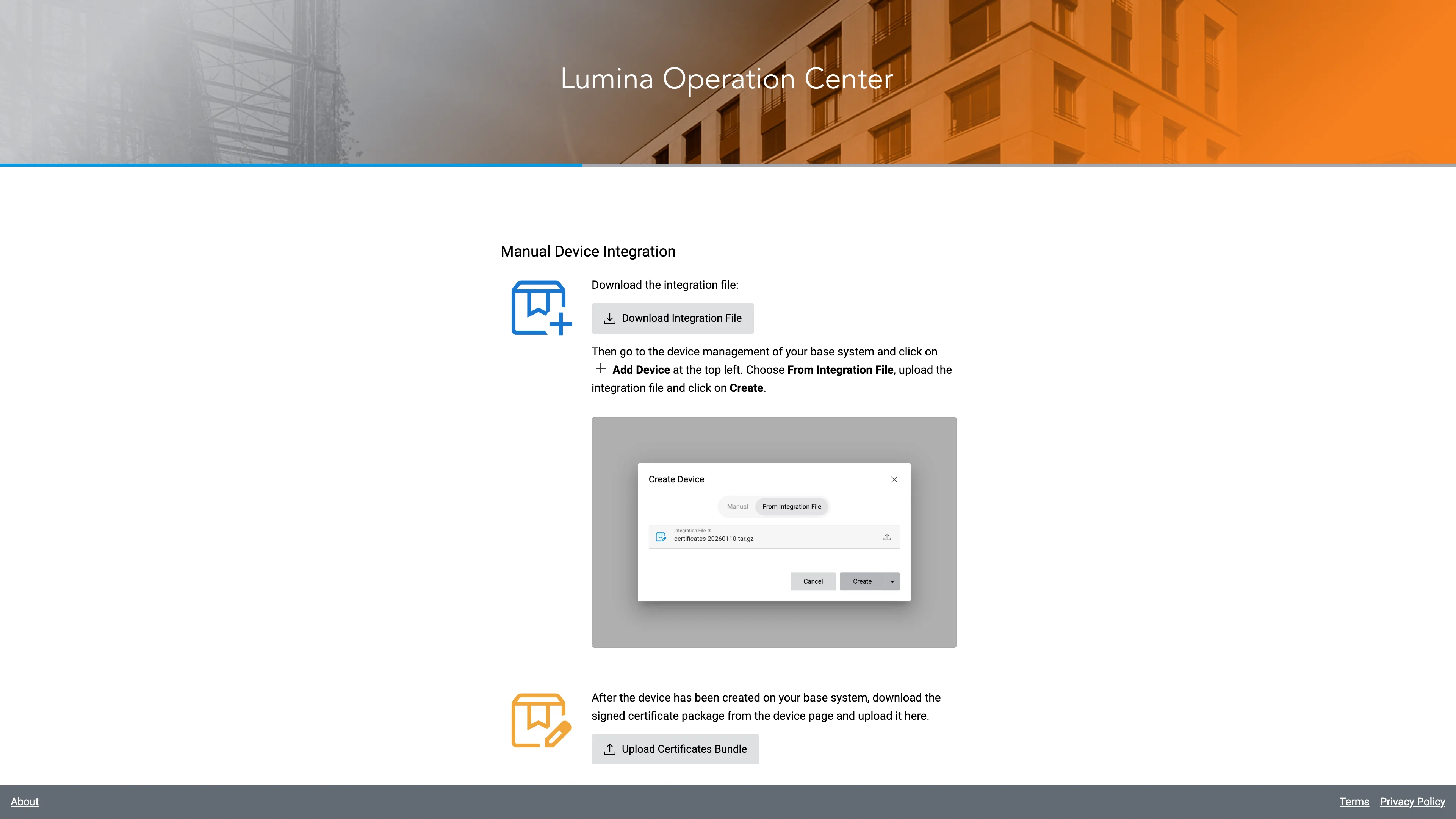
Keep the registration wizard open and go to your base system in a new browser tab or browser window. Click on the user name in the upper right corner and then on Devices. If you have access to multiple mandates, make sure that the correct client is currently selected.
Click on Add Device at the top right.
In the Create Device dialog, select From Integration File. Click on the Integration File field and select the integration file that you downloaded in the previous step.
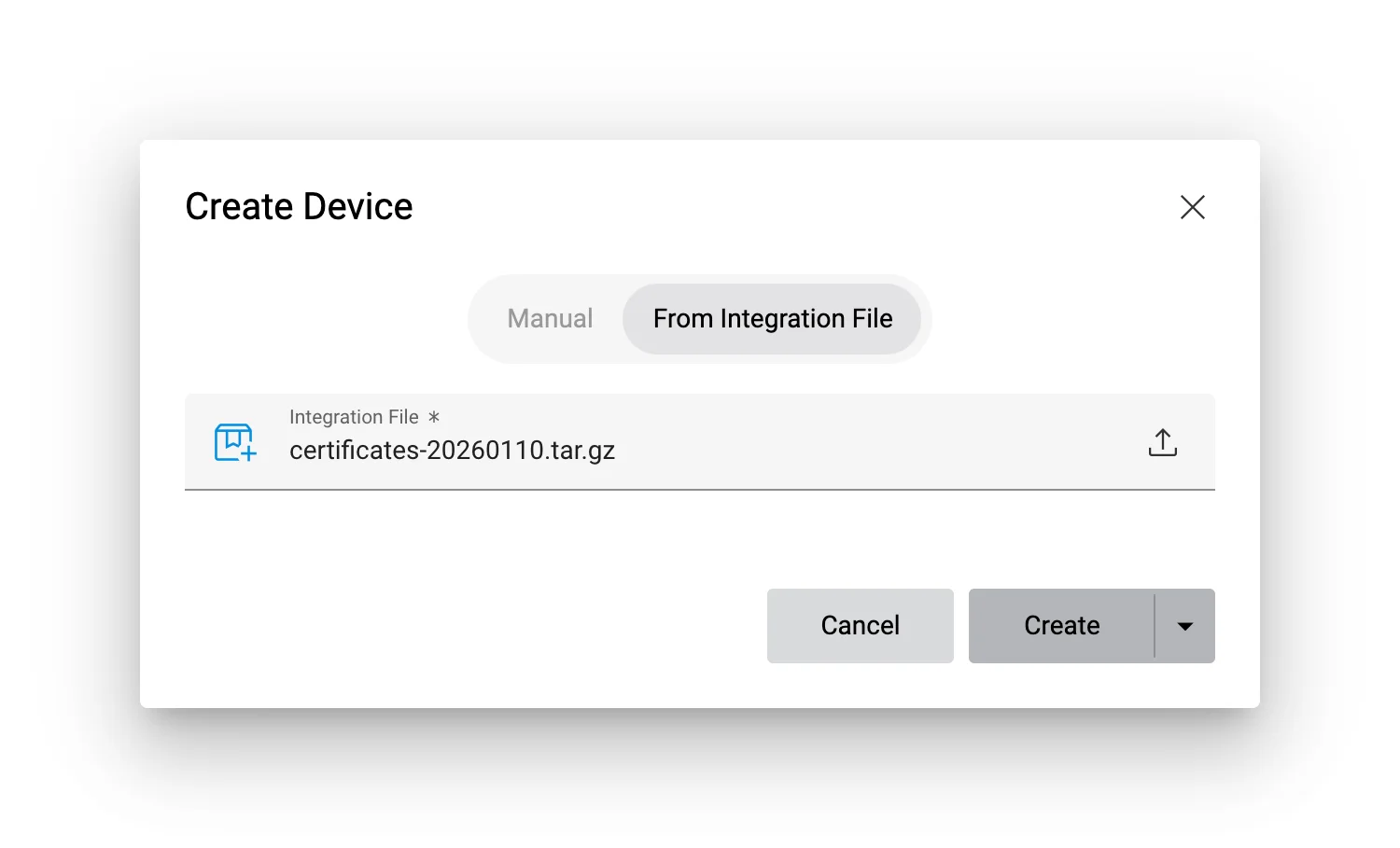
Click on Create to add the new device to your base system.
Now select the new device in the device list to go to its configuration page.
On the General card, click on Download Certificates and save the file on your computer. This files contains the signed certificates that need to be installed on the panel.
To install the certificates on the panel, return to the tab or browser window with the registration wizard and click on Upload Certificate Bundle. Select the file you just downloaded.
The panel is now ready. However, a network connection between the panel and the base system is still required to synchronize data between the two.
Continue with the device registration.