Initial setup
In order to activate and use your Casey, you have to connect it with Avelon Cloud.
Since you will be switching between Casey, the Beetle services on it and Avelon Cloud during this guide, the individual steps are marked accordingly:
Casey |
Beetle services on Casey |
Avelon Cloud |
Boot up the device
Connect the LAN1 port of the Casey to a computer on which you will be running the setup wizard.
Connect the LAN2 port of the Casey to the Internet and make sure that the Casey can access avelon.cloud via the Internet by configuring your firewall accordingly.
Connect the device using the power supply provided (24 VDC). The device will turn on automatically.
On the computer, open a web browser and navigate to
https://192.168.1.234orhttp://casey-xxxxxxxx.local, wherexxxxxxxxis the serial number of the device.
Configure network settings
Before you can use the device, you’ll have to configure its network settings so that it can connect to the Internet. This is required so that the device can activate itself and fetch the appropriate licenses from Avelon Cloud.
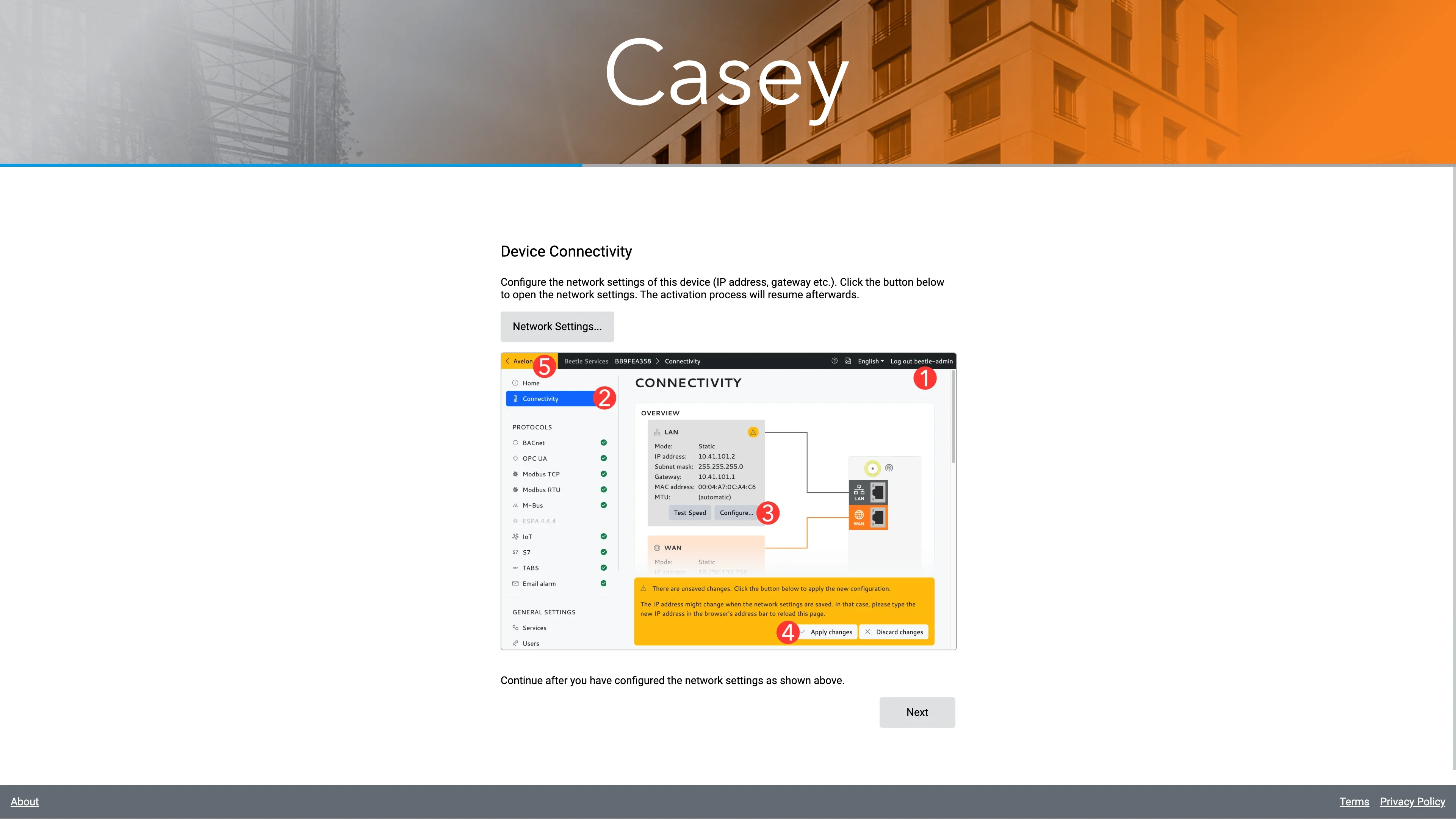
In the setup wizard, click on Network Settings… to open the configuration interface of the Casey.
On the configuration interface, click on Log in at the top right and use the login credentials below to log in:
Username: beetle-admin
Password:
sm@rtCopper48
Note
To prevent unauthorized entities from changing the network settings on the Casey, it is recommended to change the default password. You can do this on the Users page.
After logging in, click on Connectivity in the left sidebar.
On the Connectivity page, scroll down to the LAN card and click on Configure….
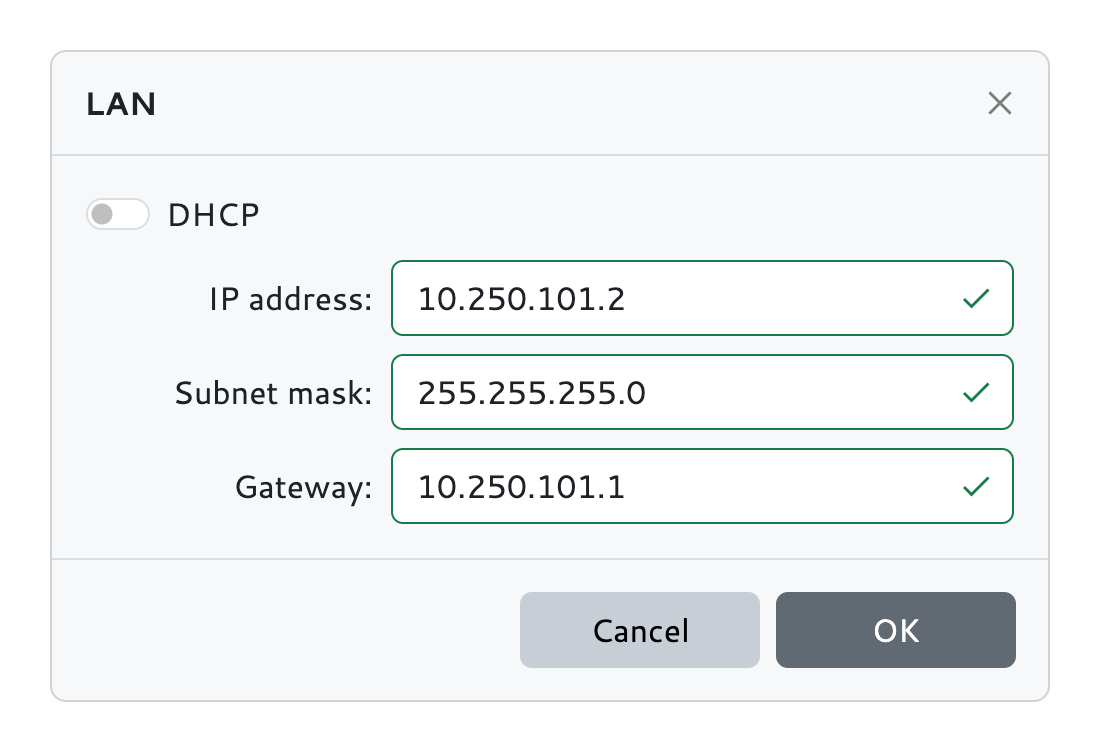
Disable DHCP and set the IP address, subnet mask and gateway address for the Casey. Confirm the settings with OK.
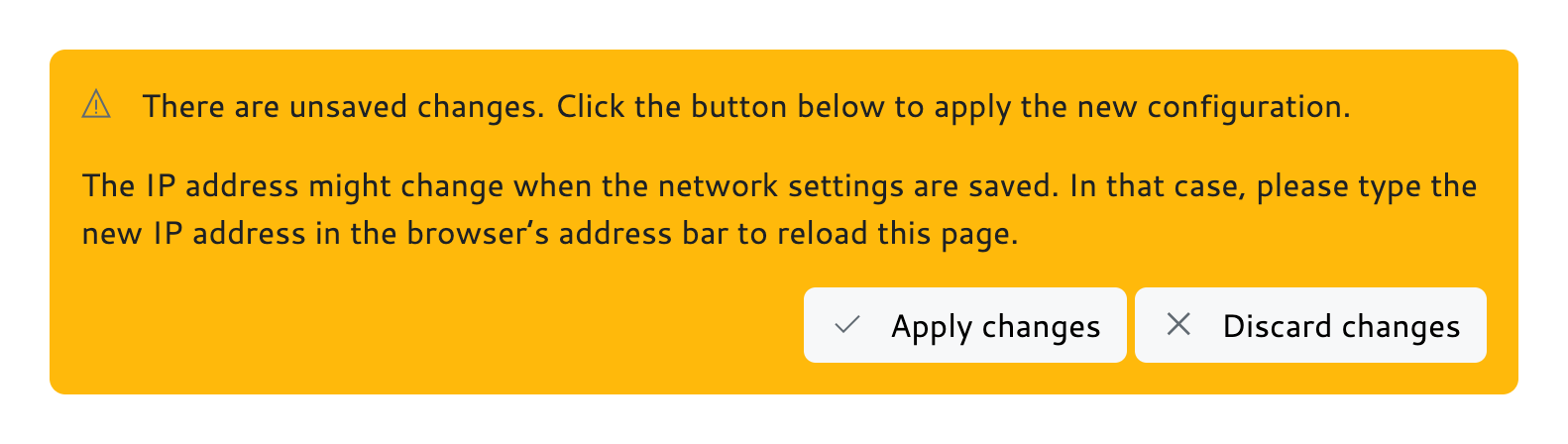
Apply the new settings by clicking on Apply changes.
Now return to the setup wizard by clicking on the yellow button < Casey in the top left corner of the page. Then proceed to the next step by clicking on Next.
Activate the device
Casey is now ready to connect to Avelon Cloud.
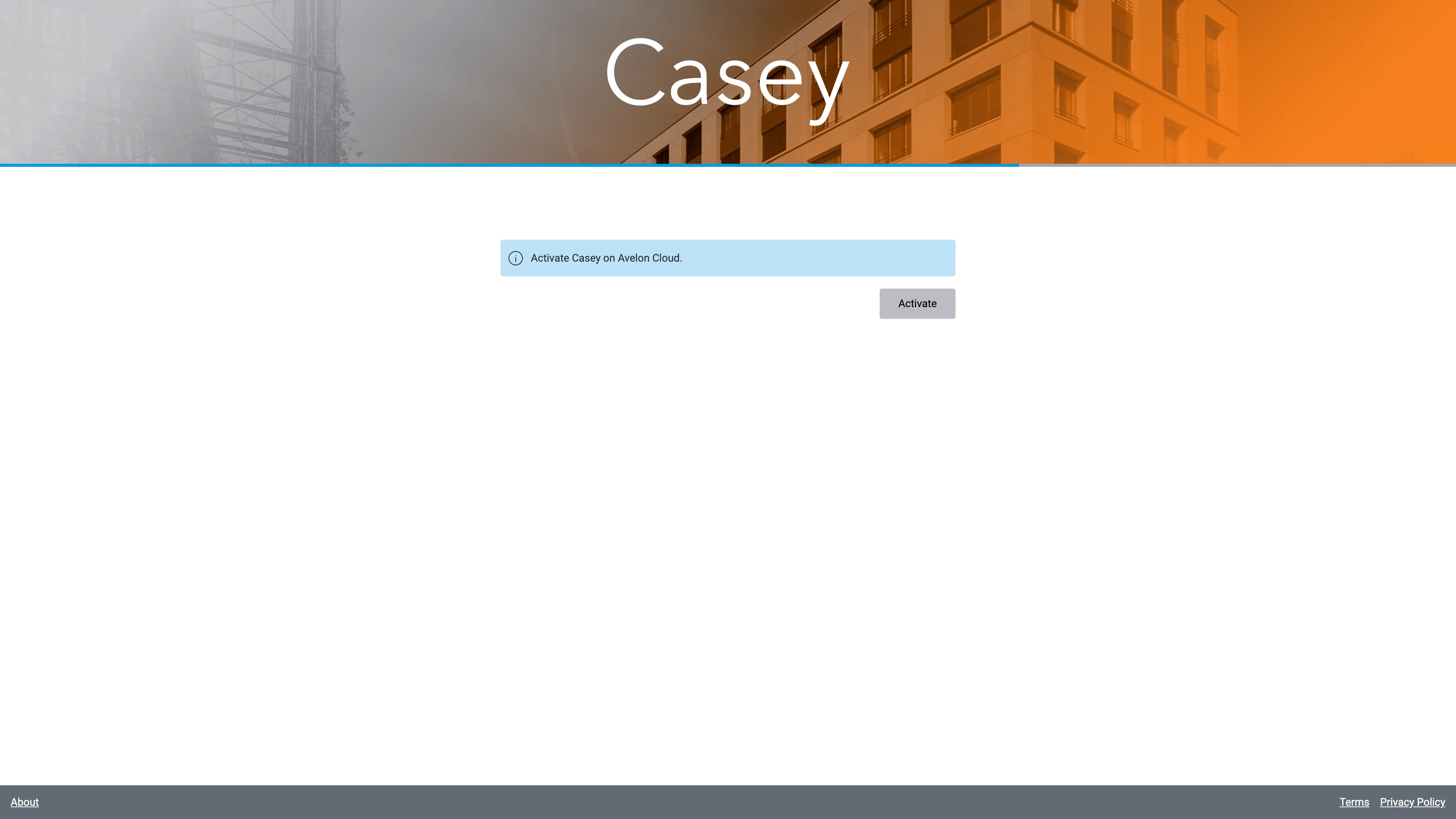
Click on Activate. This will take you to the login page of Avelon Cloud and activate your device.
You’ll now have to link your device with a user account on Avelon Cloud to activate it.
If you’re not already logged in, you can either create a new client account and a new user on Avelon Cloud, or log in with an existing user account. Then select the account on which you want to active the device.
If you’re already logged in, you can select the client account right away.
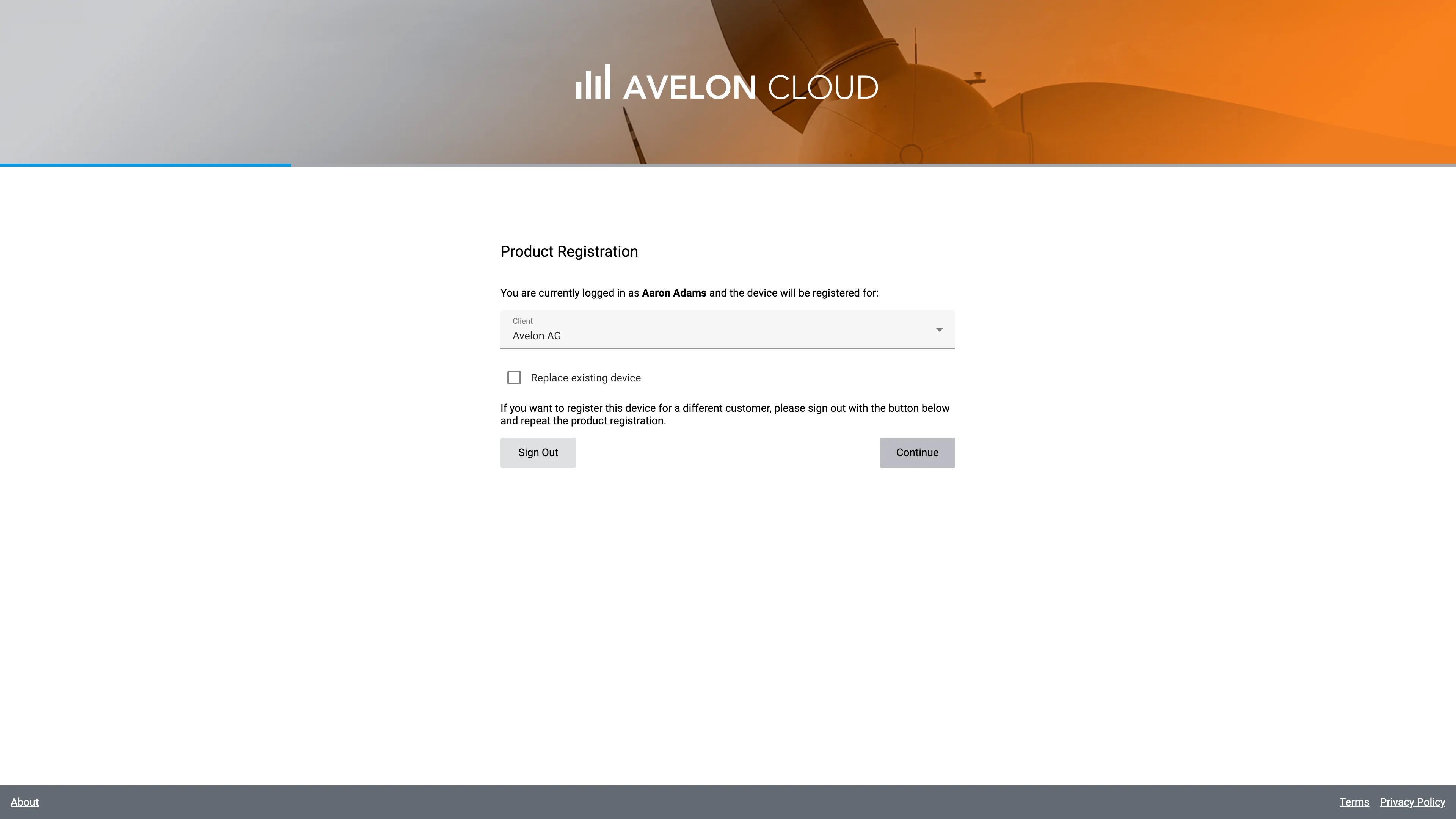
Click on Next.
You can now enter a name for your Casey device. The device will be displayed with this name in your account on Avelon Cloud, where you can manage all of your integrated devices.
It’s usually a good idea to label the device with the name of the owner or the address of the real estate where the device is located, so that you can find it more easily as your list of devices grows.
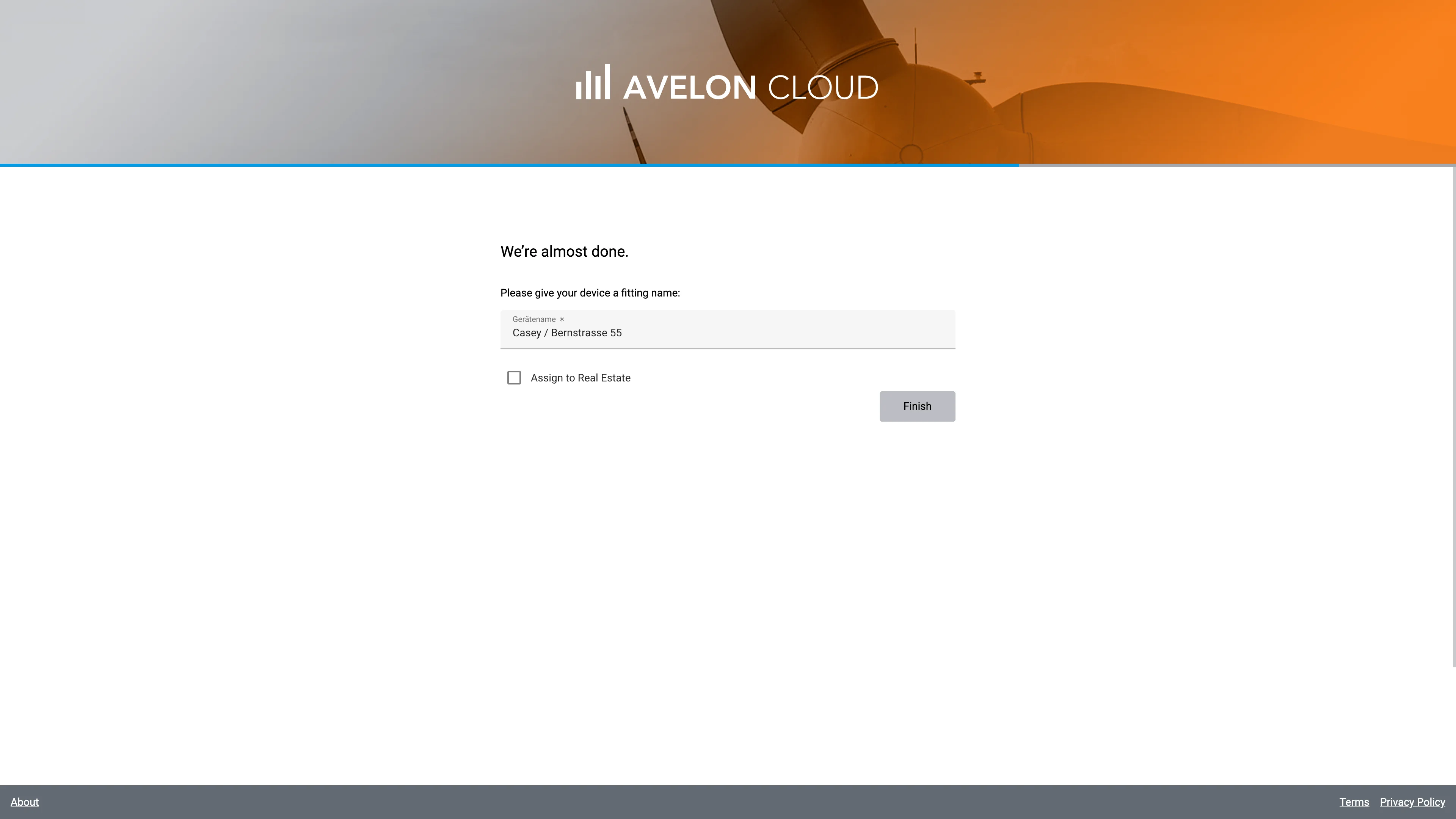
By enabling the option Assign to Real Estate, you can specify where your device is located. This step is optional, though, and the Casey device can be used without assigning it to a real estate on Avelon Cloud.
However, if you already have real estates set up on Avelon Cloud, you can select one of them from the Real Estate list.
If you click on Find real estates nearby, the system will try to determine your current location and suggest existing real estates in the vicinity.
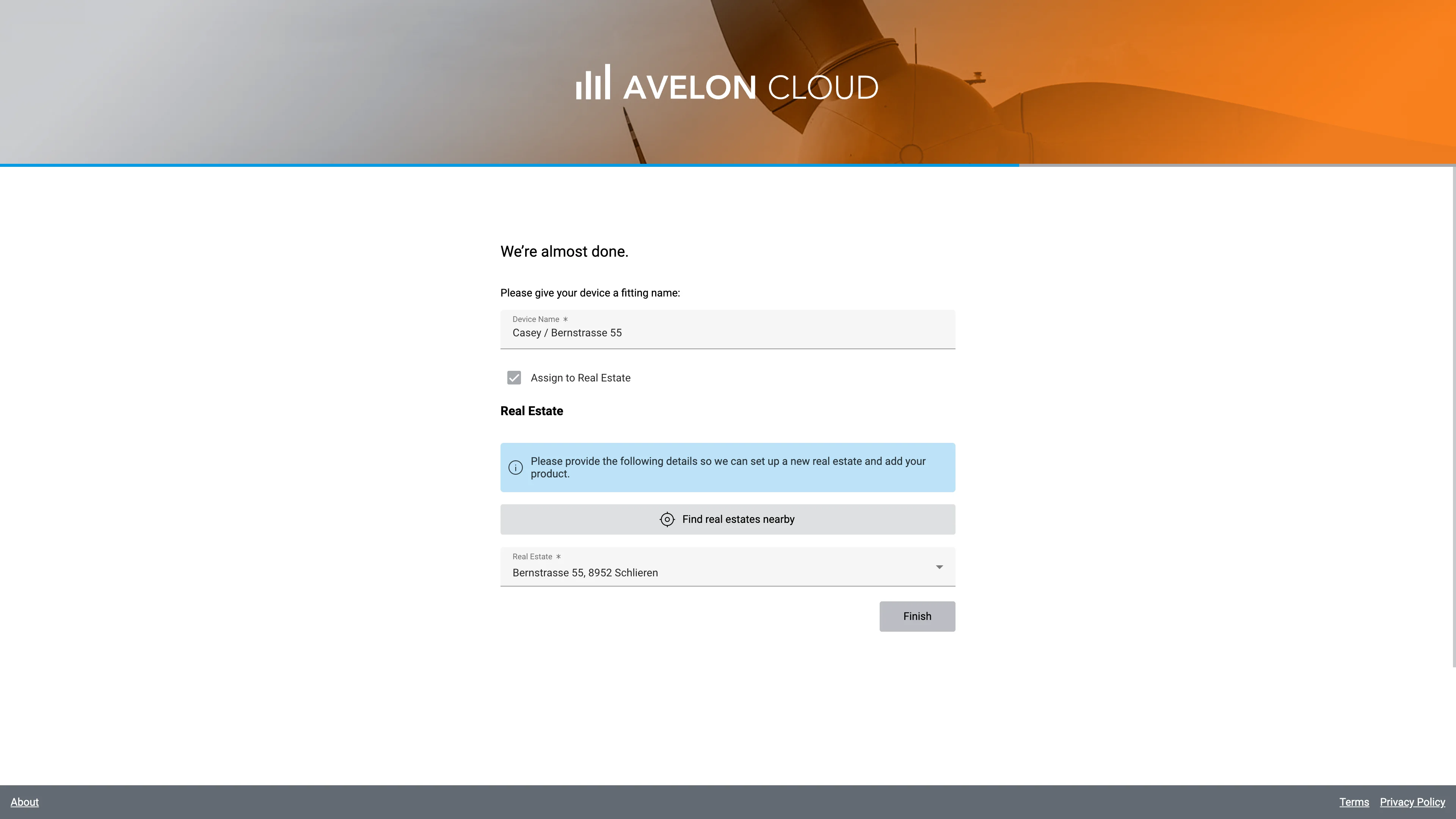
Click on Finish to complete the activation process.
After completing the activation process, you will be redirected to the Device Configuration page of the Casey on Avelon Cloud. You can see your current licenses on the Licenses card.
To start setting up and working with your Casey, click on the button Open Device Homepage on the General card. This will open the user interface of your Casey device where you can set up your project structure and dashboards.