Troubleshooting
The device is not displayed in Avelon Connect
Make sure that the user has been granted remote access to the corresponding device.
Open device management on Avelon Cloud by clicking on Devices in the user menu at the top right.
Select the corresponding Casey from the list.
Make sure that all user groups that are allowed to connect to the device via VPN are assigned on the Device Access card. If necessary, adapt the access rights (see section Device access) and then click on Save.
Configure network settings
If Casey cannot connect to Avelon Cloud, open its Beetle services by clicking on Open Beetle Services on the General card.
Alternatively, go to http://<ip-address-of-casey>:8888 to open the page from a computer in the same local network.
If you are not yet logged in, click on Log in at the top right and log in. Use the login credentials of the Beetle services. The default credentials are documented in the Beetle manual.
Click on Connectivity in the menu on the left.
On the Connectivity page, make sure that all settings are configured correctly.
If you make any changes, be sure to click on Apply changes to save the changes.
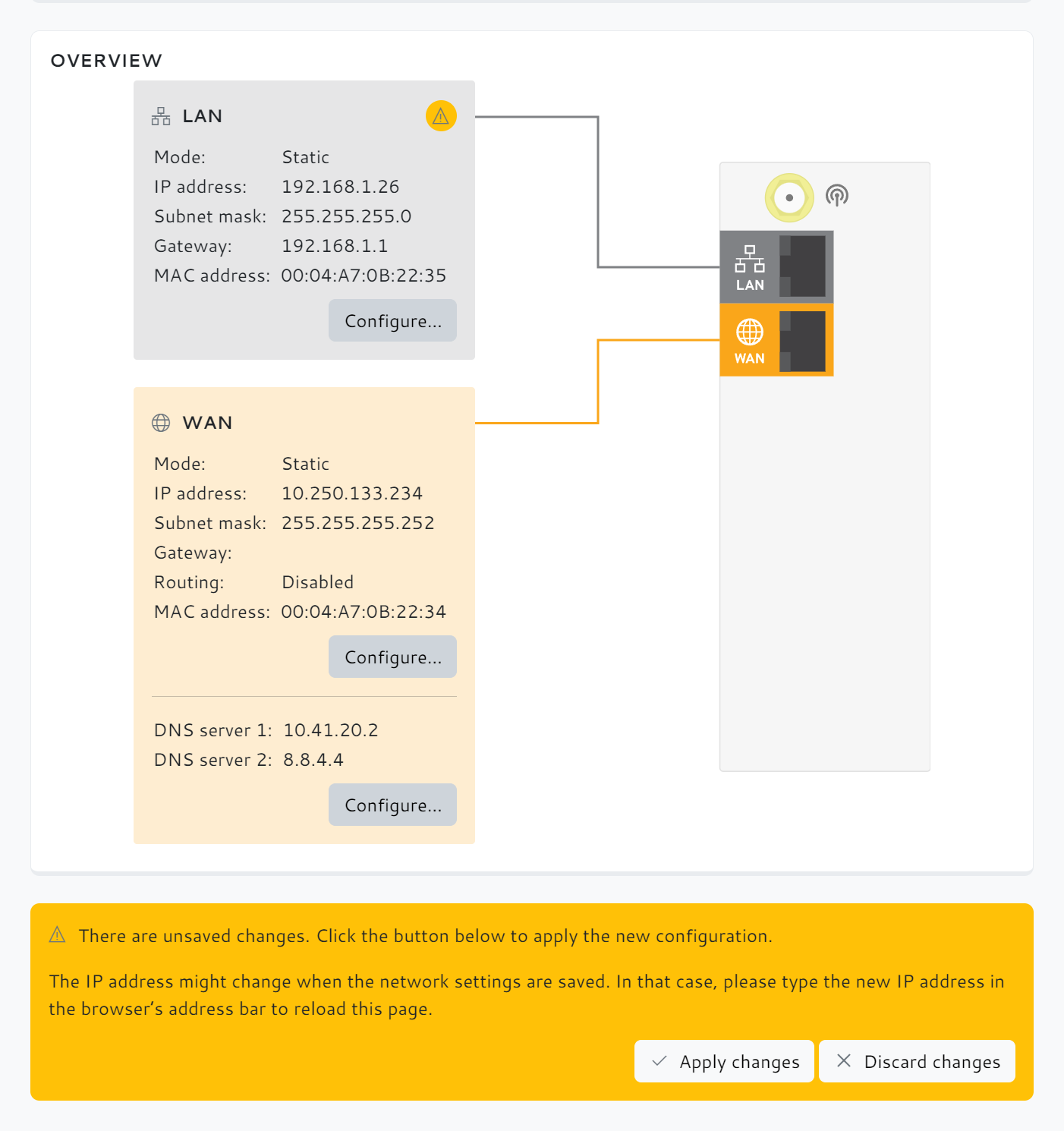
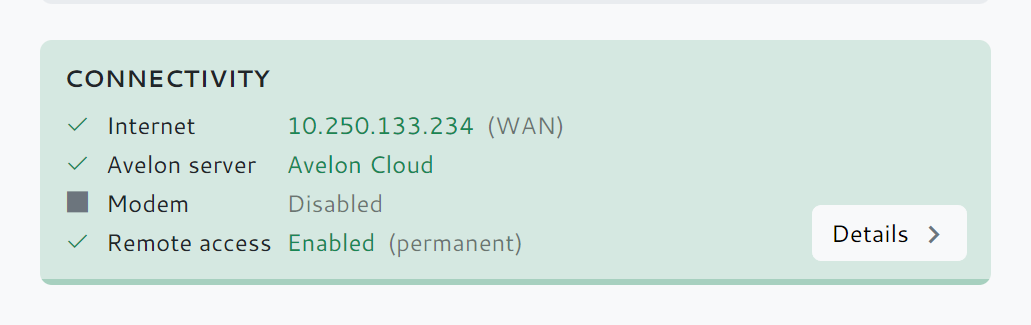
Correct connectivity settings
Also make sure that your firewall allows the communication between your Casey and Avelon Cloud (avelon.cloud).