Chart download
To access download options for a chart, open it in full screen mode, then click on More ▸ Download at the top right.
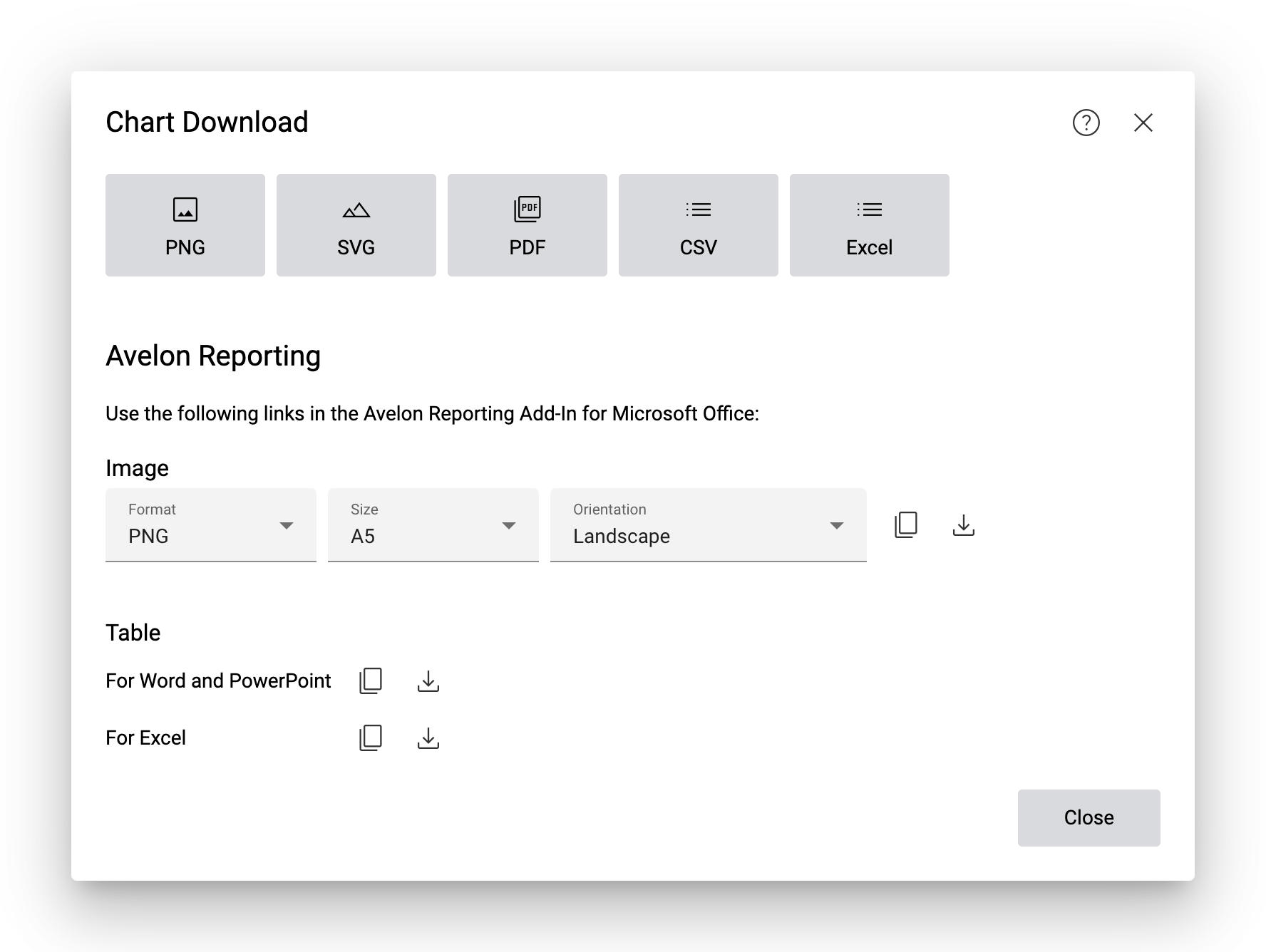
The large buttons at the top allow you to download a snapshot of the current chart.
The options PNG, SVG and PDF will download the chart as an image in the respective format. The options CSV and Excel will download the data behind the chart.
Avelon Reporting
Charts can be placed in automated reports via Avelon Reporting. Learn more about using charts in reports on Insert widget and Insert table.
Note
The download options for Avelon Reporting are only available if you have sufficient Energy Reporting licenses. All data points that are used in the current chart must have a valid Energy Reporting license assigned. See Data point licenses.
Image
To insert a dynamic pre-rendered image of the chart, select the desired format of the chart and click on Copy Link to Clipboard. In Avelon Reporting, click on Image in the ribbon of Microsoft Office, and then paste the copied URL into the Source field of the Insert Widget dialog. For detailed instructions, please see Insert widget.
Table
To insert raw data from the chart, either as individual values or as a table, click on Copy Link to Clipboard next to one of the two options, depending on your target application:
- For Word and PowerPoint
This option allows you to insert individual values from the chart. For detailed instructions, please see Insert field.
- For Excel
This option allows you to insert the data as a table in Microsoft Excel. In addition, you can use Excel’s built-in Power Query feature (“Get & Transform”) to query and transform the data. For detailed instructions, please see Insert table.
Copy URL to clipboard or download file
If you click on Copy Link to Clipboard, only the URL to the chart data is copied to the clipboard. You can insert this URL in Avelon Reporting as described above. Each time a new report is generated, Avelon Reporting will evaluate this URL, and the data will automatically be updated with the most recent information from Avelon Cloud.
If you want to see what data is behind the URL, you can click on Download to download the data as an XML file. However, this file cannot be used in Avelon Reporting directly and is only intended for debugging purposes.
Note
Whenever possible, use the Copy Link to Clipboard option if you want to use the chart in Avelon Reporting.