Insert field
You can insert individual values from a chart into your reports.
On Avelon Cloud, navigate to the desired dashboard and click the desired chart widget to display it in full-screen mode.
Click on Download in the action bar at the top right.
In the dialog window that appears, click on Copy Link to Clipboard next to the option Table ▸ For Word and PowerPoint.
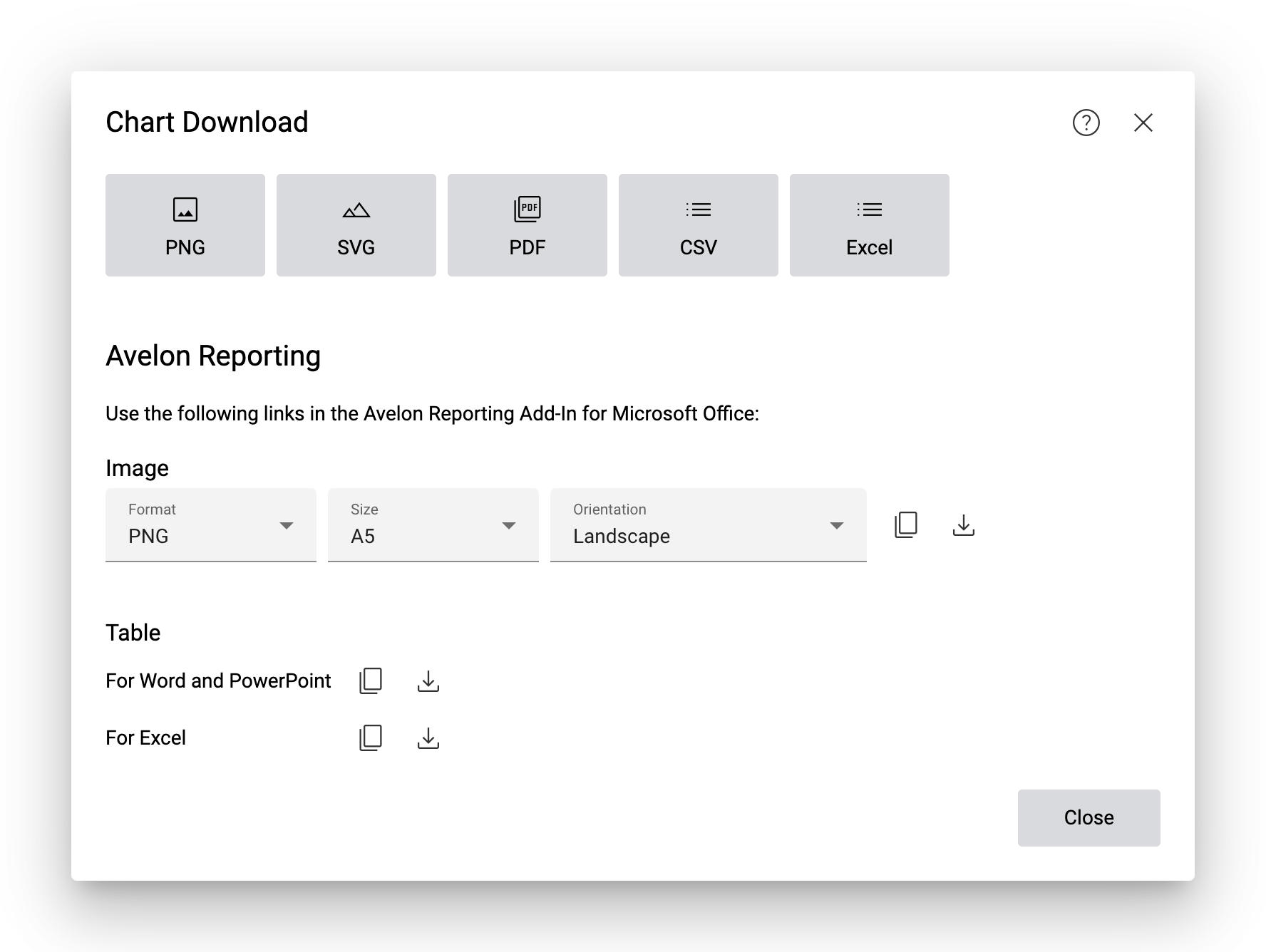
Close the dialog window, switch to your template file in Microsoft Office and go to the Avelon Reporting tab.
Click on Sources in the ribbon.
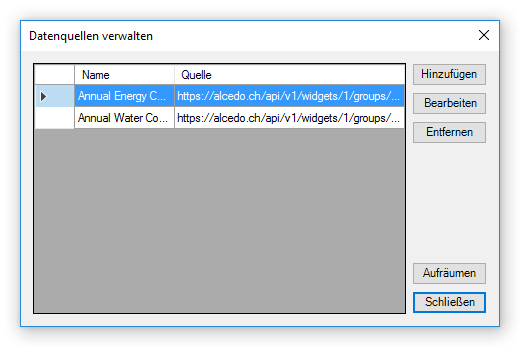
In the dialog that appears, click on Add, paste the URL you just copied from the clipboard into the Source field, enter a name for this data source (e.g. the name of the chart) and confirm the dialog with OK. Close the Sources dialog as well. This will add a group
[datasource]to your document. Do not remove this group from the document, otherwise the connection to the data source will be lost and the field will not be filled with data when the report is generated.
In the document, place the cursor where you want to insert the value and click on Field in the ribbon. This will open the Fields panel on the right hand side.
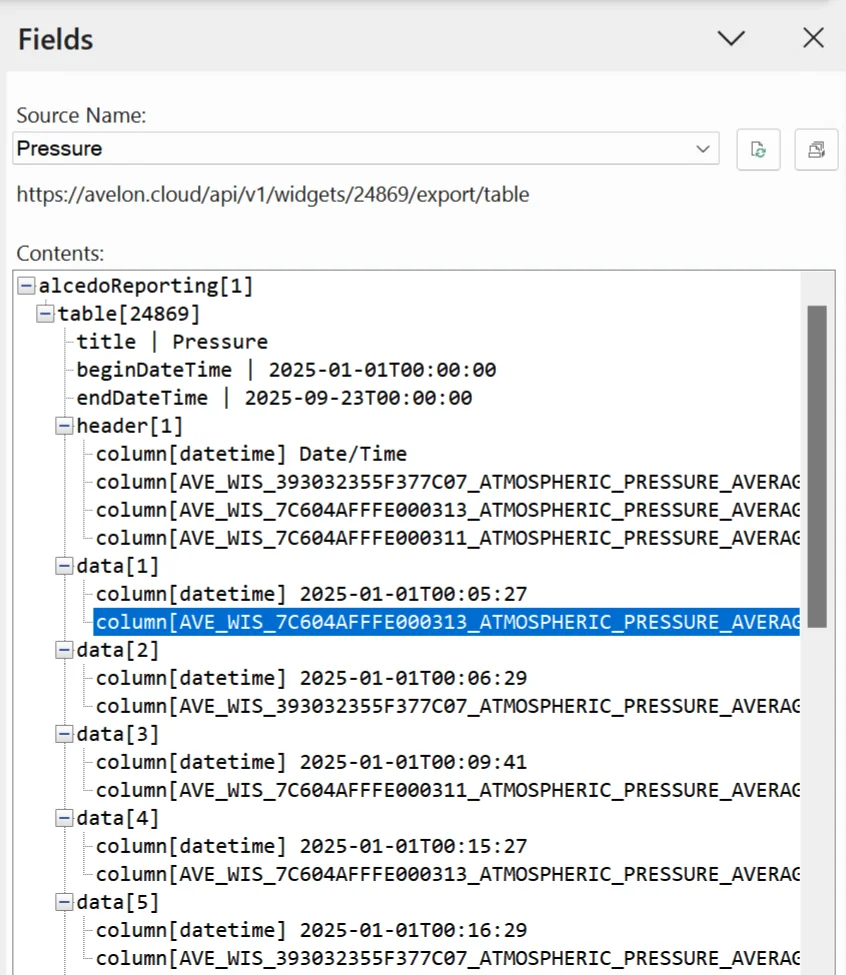
Expand the nodes in the tree view to navigate to the desired value, then double-click on it to insert it at the current cursor position.

When the report is generated, the field will automatically be filled with the most current value from the chart at that time.
Copy URL to clipboard or download file
In the download window you have two options for downloading widgets. What’s the difference?
If you click on Copy Link to Clipboard, only a reference is placed in the clipboard. You can then insert this reference in Avelon Reporting. Each time a new report is generated, Avelon Reporting will evaluate the reference, i.e. the widget will automatically be filled with the most current data from Avelon Cloud.
If you click on Download, however, the momentary state of the widget is saved in a file which is downloaded. The resulting file is static, but can be inserted or further processed in various third-party applications.
Note
Whenever possible, use the Copy Link to Clipboard option if you want to use the widget in Avelon Reporting.