Reconcile S7 objects
To use objects from S7 controllers as data points on Avelon Cloud, you’ll first need to add the respective controller, modules and objects (see Set up controllers, modules and objects) and then reconcile them with Avelon Cloud. This will write the configuration to the Beetle and create data points for each object.
As you create or modify controllers, modules or objects on the Objects on the Network tab, the Status column indicates whether a data point will be created, modified or deleted when you reconcile the changes.
Reconciled |
The item has been written to the Beetle. If it’s an object, a data point has been created for it. |
|---|---|
Changed, not reconciled |
The item has been modified since the last time it was written to the Beetle. If it’s an object, the corresponding data point has not yet been updated. |
New, not reconciled |
The item has been newly created and has not yet been written to the Beetle. If it’s an object, no data point exists for it yet. |
Removed, not reconciled |
The item has been marked for deletion but the change has not yet been written to the Beetle. If it’s an object, the corresponding data point still exists. |
To reconcile all objects on a controller, select the controller in the sidebar on the left and click on More ▸ Reconcile Controllers… at the top of the sidebar. Select the controllers whose objects you want to reconcile in the following dialog and click on Preview to see a preview of all the modified data points.
You can also reconcile individual modules or objects by selecting the checkboxes on the respective Modules or Objects tab and clicking on Reconcile Selected Objects at the top right. If the selected objects are located on a module or controller that has pending changes, those will be reconciled as well.
On the reconciliation preview, you can see all the data points that will be created or modified during the process on the respective tabs:
New Data points
Changed Data points
Deleted Data Points
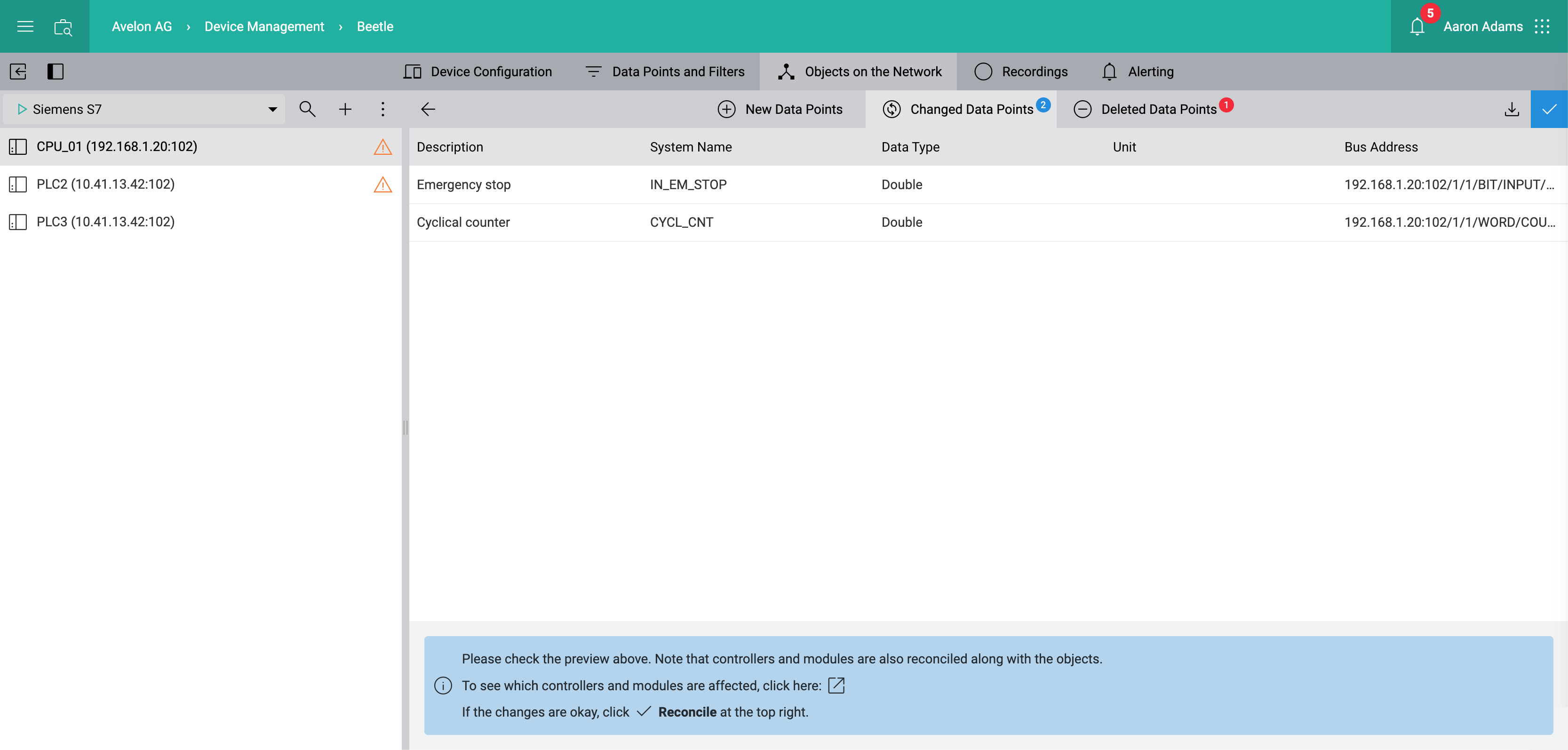
Click on Reconcile at the top right to start the reconciliation process. Afterwards, the generated data points will be available on the Data points and filters page.