Introduction
The Siemens S7 series is a family of programmable logic controllers (PLCs) designed for industrial automation and control applications and are widely used across manufacturing, process control, and infrastructure systems.
S7 PLCs support a wide range of communication protocols, including the S7 protocol, which is a Siemens proprietary request/response protocol for accessing PLC memory, blocks, diagnostics, and control functions. Modern implementations commonly use RFC 1006 (S7comm) over TCP/IP, enabling integration with SCADA, HMI and PC-based tools. RFC 1006 uses port 102 by default.
To view and manage controllers, modules and objects via S7, select S7 from the protocol dropdown at the top of the left sidebar.
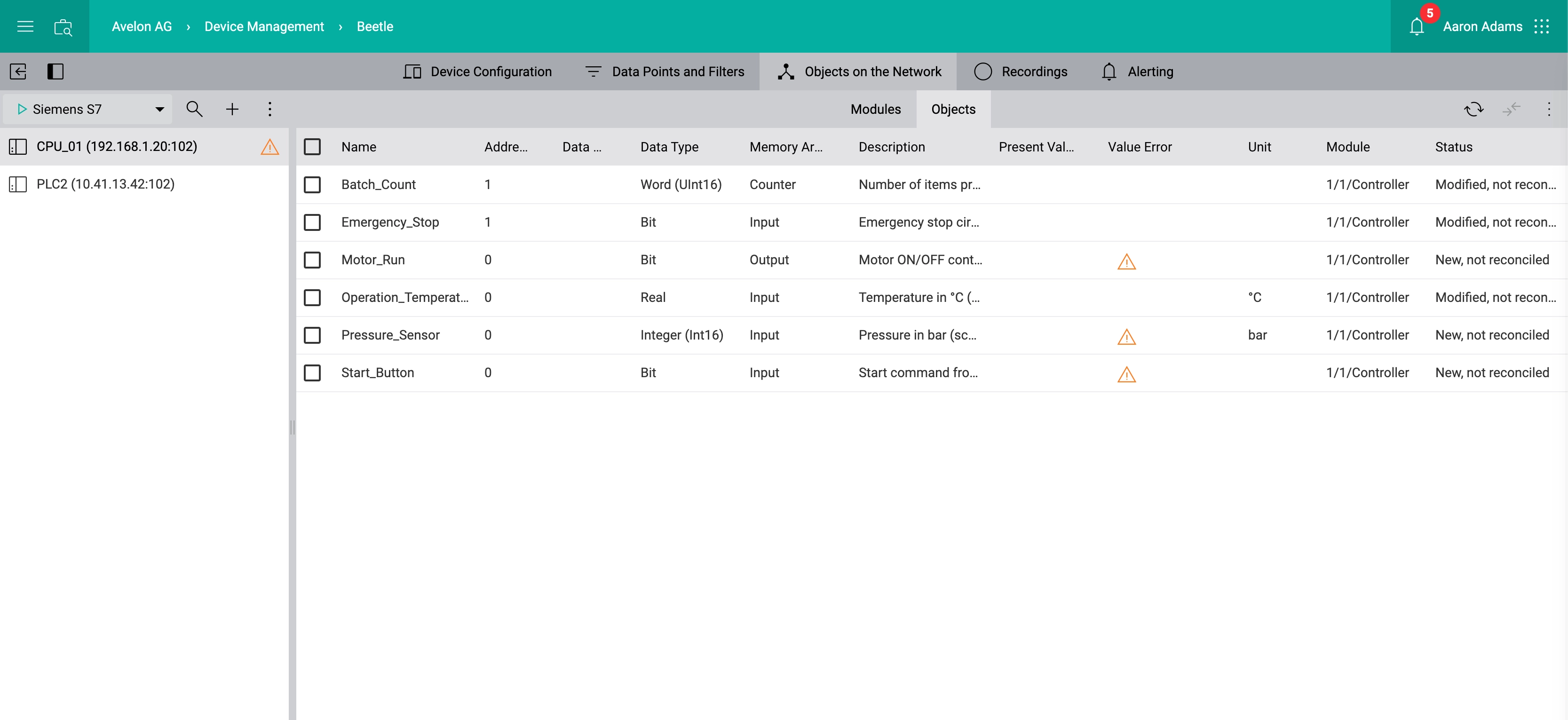
Controllers, modules and objects are not automatically retrieved from the PLC. Instead, you’ll need to add them manually on the user interface and then write the configuration to the Beetle.
Set up controllers, modules and objects
First, create the controllers, modules and objects that you intend to use on Avelon Cloud according to their configuration on the PLC. Then reconcile them to write them to the Beetle and to create data points in the process. Only after reconciliation will the Beetle be able to read or write data to the individual objects, and data points will be created for them that you can use on Avelon Cloud.
A warning icon will be displayed next to controllers that contain unsaved changes. The Status column in the table on the right hand side indicates the current synchronization status of that particular item.
Reconciled |
The item has been written to the Beetle. If it’s an object, a data point has been created for it. |
|---|---|
Changed, not reconciled |
The item has been modified since the last time it was written to the Beetle. If it’s an object, the corresponding data point has not yet been updated. |
New, not reconciled |
The item has been newly created and has not yet been written to the Beetle. If it’s an object, no data point exists for it yet. |
Removed, not reconciled |
The item has been marked for deletion but the change has not yet been written to the Beetle. If it’s an object, the corresponding data point still exists. |
You’ll need to write changes to the Beetle by reconciling them before they take effect. By doing so, data points will be created, updated or removed accordingly to reflect the S7 configuration.
Controllers
Controllers are displayed in the sidebar on the left. To add a new controller, click on Add Controller at the top of the sidebar and provide the necessary details of the controller.
- Name
The name of the controller. This will be displayed in the sidebar to identify the controller, along with its IP address and port number.
- IP
The IP address of the controller.
- Port
The port number used for communication with the controller.
- Rack
The rack number where the controller is located.
- Slot
The slot number of the controller.
After you’ve created a controller, you can edit it by selecting it in the sidebar and then clicking on More ▸ Edit Controller above.
Modules
On the Modules tab on the right hand side, you can see and manage the modules of the selected controller.
Click on More ▸ Create Module at the top right to add a new module and provide the necessary details.
- Name
The name of the module.
- Rack
The rack number where the module is located.
- Slot
The slot number of the module.
The Status column on the table view indicates whether the respective module has been written to the Beetle. Reconcile it to write it to the Beetle and to create data points in the process.
After you’ve created a module, you can edit it by clicking on it on the Modules tab.
Copy or move modules
If you need to duplicate or move a module to a different controller, you can do so by selecting the checkbox on the left hand side of the module in the table on the Modules view and clicking on More at the top right and then on Copy Modules or Move Modules, respectively. In the following dialog, select the controller to which you want to copy or move the previously selected modules. Controllers are labeled with their name, IP address and port number.
Objects
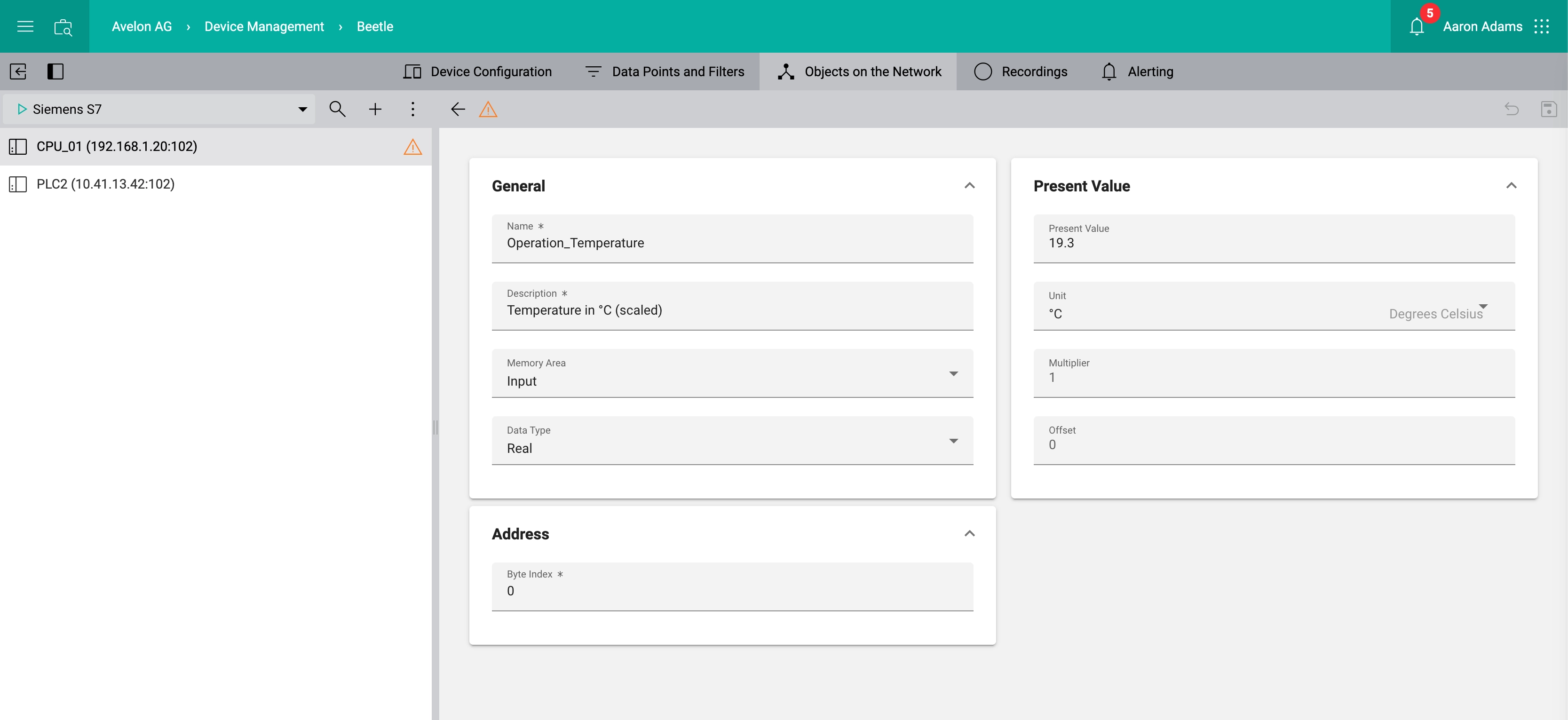
On the Objects tab on the right hand side, you can see and manage the list of inputs and outputs of the selected module.
Click on More ▸ Create Object at the top right to add a new object and provide the necessary details.
- Name
The name of the object.
- Description
A brief description of the object.
- Memory Area
The memory area where the object is located.
Input
Output
Data Block
Flag
Peripheral
Timer
Counter
- Data Type
The data type of the object.
Bit
Byte
Word (UInt16)
Integer (Int16)
Double Word (UInt32)
Double Integer (Int32)
Large Integer Unsigned (UInt64)
Large Integer (Int64)
Real
S7 String
- Data Block
The data block number where the object is located. Only available for objects located in the Data Block memory area.
- Unit
The unit of measurement for the object, e.g. °C, kWh, etc.
- Present Value Multiplier
Values will be multiplied by this factor before being displayed. The multiplier is only visible for data type Real and is applied before the offset.
- Present Value Offset
Values will be offset by this amount before being displayed. The offset is only available for data type Real and is applied after the multiplier.
- Byte Index
The byte index within the memory area where the object is located.
- Bit Index
Only available for objects with data type Bit. The bit index within the byte where the value is located.
- Module
The module to which the object belongs.
Note that you’ll only need to add objects that you intend to use on Avelon Cloud. It is not necessary to add all objects present on the PLC.
The Status column on the table view indicates whether the object has been written to the Beetle. Reconcile it to write it to the Beetle and create a data point in the process.
After you’ve created an object, you can edit it by clicking on it on the Objects tab.
Copy or move objects
If you need to duplicate or move an object to a different module, you can do so by selecting the checkbox on the left hand side of the object in the table on the Objects view and clicking on More at the top right and then on Copy Objects or Move Objects, respectively. In the following dialog, select the module to which you want to copy or move the previously selected objects. Modules are labeled with their rack number, slot number and name.
Reset changes
If you made changes on the S7 configuration that you don’t want to keep, you can click on More ▸ Reset Changes. This will discard any changes made since the last time the configuration was written to the Beetle.
Create objects in bulk
As an alternative to setting up controllers, modules and objects on the user interface, you can also create them in bulk by editing a configuration file in Microsoft Excel and importing it. This allows you to create dozens or hundreds of objects more quickly.
In the sidebar on the left, click on More ▸ Download Configuration File Template. Download the template and edit it in Microsoft Excel. Follow the instructions provided in the file to set up your controllers, modules and objects. Afterwards, click on More ▸ Upload Configuration File to upload the edited file. If the configuration file is valid, the controllers, modules and objects will be created accordingly.
Instead of downloading the empty template file, you can also export the current configuration by clicking on More ▸ Export Configuration…. Select the controllers you want to include in the export, and click on Export. You can then open the file in Microsoft Excel, make the necessary changes, and upload it again as described above.